Use case · WhatsApp chatbot
WhatsApp Business chatbot on your own number, with AI and guided flows
Chyt.ai connects your own WhatsApp Business number to a chatbot through the Meta Cloud API, so customers get answers grounded in your content inside WhatsApp. The same knowledge sources and guided flows serve your website and WhatsApp, flow options arrive as tappable buttons, and your team can reply from a shared inbox. The WhatsApp channel starts on the Pro plan and is subject to availability for your workspace.
Who it is for: Businesses in India and other WhatsApp-first markets whose customers prefer messaging to web forms, email or phone queues
The problem
Customers message on WhatsApp, and replies depend on who is free
A shared phone or a single staff member answering WhatsApp cannot keep up at busy times or after hours. Messages wait, and the same questions are typed out again and again.
Website and WhatsApp give different answers
When the website bot, the WhatsApp replies and the help centre are maintained separately, they drift apart. Customers receive one price or policy in one place and another elsewhere.
Numbers are collected but never become organised leads
Enquiries live in a phone's chat list with no names, no stages and no record of what was asked, so follow-up depends on memory.
How Chyt.ai solves it
Your own number, connected through the Meta Cloud API
You register your WhatsApp Business number in your own Meta app, create a permanent access token, and paste the Phone Number ID, token and app secret into the chatbot's WhatsApp card. Chyt.ai verifies the details with Meta, then gives you a callback URL and verify token for Meta's webhook settings. The guide walks through every screen; allow about 20 minutes.
Read the guideOne chatbot, the same knowledge on web and WhatsApp
The WhatsApp channel uses the same chatbot, so answers come from the same website crawl, documents and Q&A sources as your web widget, and follow-up questions keep the context of the conversation. Update a source once and both channels change. Other channels such as Slack, Microsoft Teams, email and SMS can be added when configured and available.
Read the guideGuided flows as tappable buttons and lists
If the chatbot has active flows, their options arrive in WhatsApp as tappable buttons or a list. The menu always ends with Chat with our AI assistant and Leave a message for our team. Flow replies and menus use no AI credits.
Read the guideEvery new number becomes a lead
The first message from a new number creates a lead with the phone number recorded from WhatsApp. By default the chatbot then asks for name, company and email after its first answer; people can reply skip and are never asked twice. Messages left for the team are stored on the lead.
Read the guideTeam replies from the shared inbox
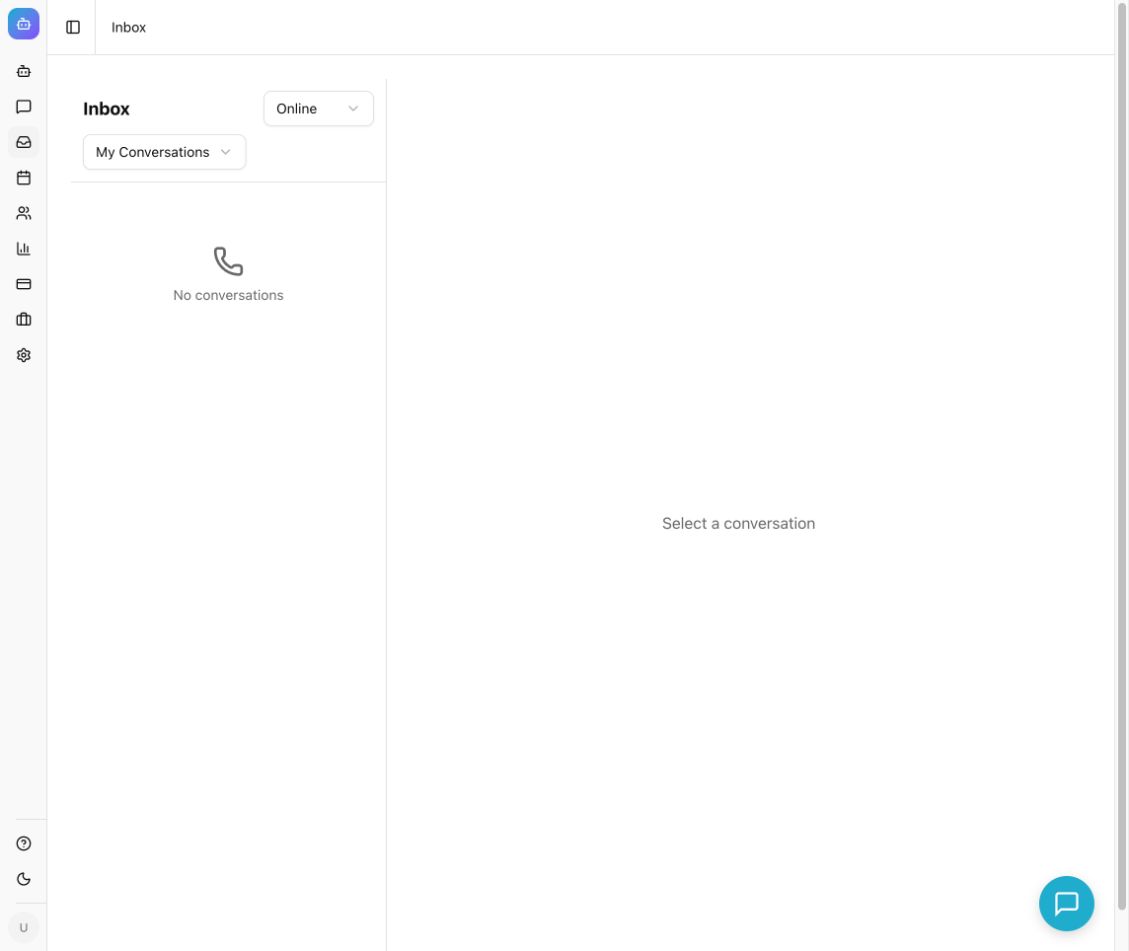
WhatsApp conversations appear in Conversations with a WhatsApp badge, and your team can reply from the inbox. Use handoff settings and a Handoff node to route people who need a person, with escalation and offline messages that match your working hours.
Read the guideWhat the conversation looks like
An illustrative example. Your assistant uses your own content, wording and flows.
- Visitor
Hi, do you deliver to Kochi?
- Assistant
Yes, we deliver across Kerala, including Kochi. Orders usually arrive within three to five working days, and delivery charges are shown at checkout.
AI answer grounded in the delivery page of your website, the same source your web widget uses. The sender's number is saved as a lead - Visitor
Bulk order enquiry
- Assistant
Happy to help with a bulk order. Roughly how many units do you need? [Under 50] [50 to 200] [More than 200]
A guided flow chosen by name. Options arrive as tappable buttons — fixed wording, no AI credits used - Visitor
50 to 200
- Assistant
Thanks. For that quantity our sales team prepares a custom quote, so I am passing this chat to them now. They reply here during working hours.
Handoff node. The conversation shows a WhatsApp badge in Chyt.ai and your team replies from the inbox
Set it up in 5 steps
- 1
Prepare the number and a dedicated Meta app
You need a Meta developer account and a WhatsApp Business number that is not in use in the WhatsApp app on a phone. Use a dedicated Meta app for the chatbot, because a Meta app sends its webhooks to only one callback URL.
- 2
Collect the Phone Number ID, permanent token and app secret
Register the number under production setup and turn on Subscribe webhooks, create a system user token that never expires with both WhatsApp permissions, and copy the app secret from the app's basic settings.
- 3
Connect the number in Chyt.ai
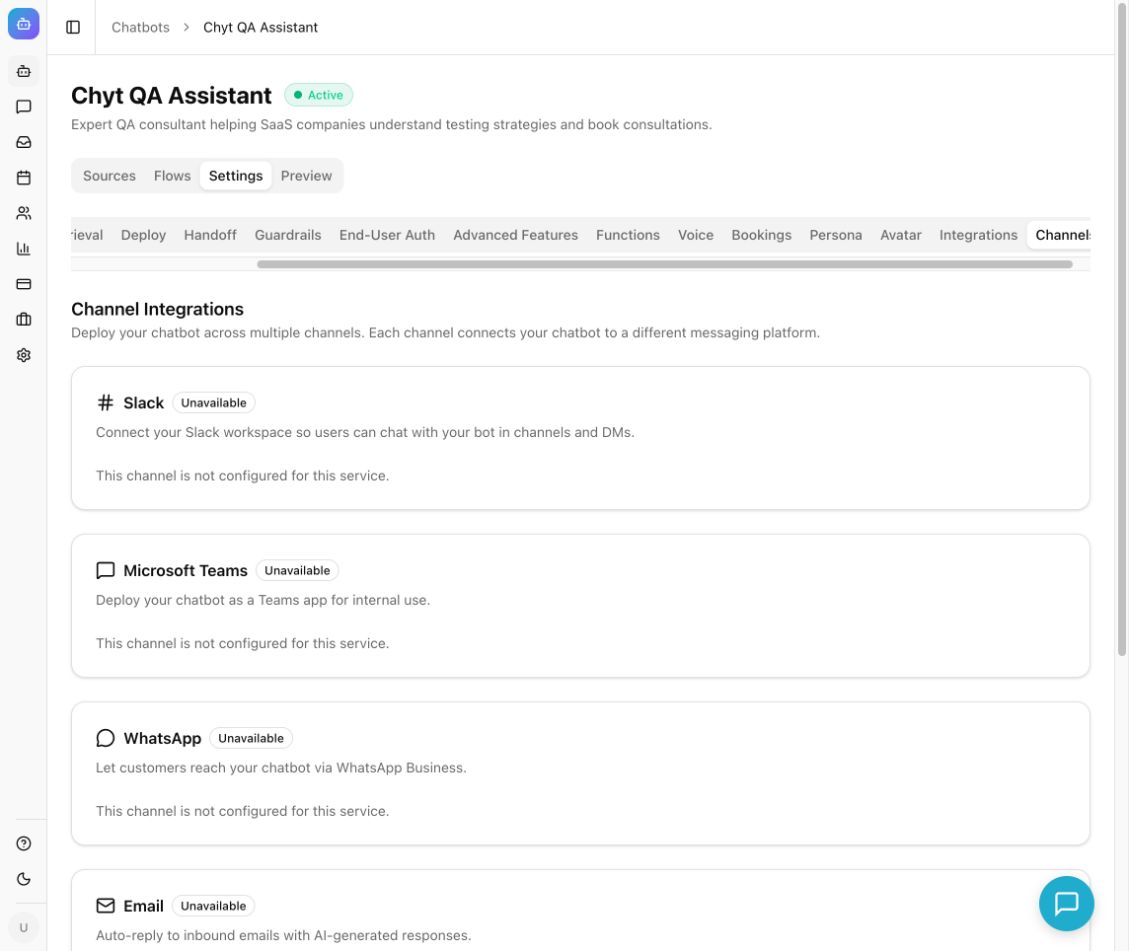
Open the chatbot's Settings, go to Channels, paste the three values into the WhatsApp card and select Connect. Read any Unavailable or plan notice on the card first. A number can answer for one chatbot only.
- 4
Point Meta's webhook at Chyt.ai and publish the app
Paste the callback URL and verify token into Meta's webhook configuration, subscribe to the messages field and publish the app. Unpublished apps receive test webhooks only, so real customer messages would never arrive.
- 5
Send a real test message
Message the business number from another phone. You should see a read receipt, a typing indicator and the chatbot's reply within a few seconds, and the conversation should appear in Chyt.ai. Provider delivery is the final check.
Inside the product
What it means for the business
Customers are answered where they already are
People get an answer grounded in your content in WhatsApp within seconds, including outside working hours, rather than waiting for a staff member to pick up the phone.
One source of truth across channels
Website and WhatsApp answers come from the same knowledge sources and flows, so prices and policies stay consistent.
Enquiries become organised leads
Each new number is recorded as a lead with its conversation attached, ready for stages and follow-up.
AI usage you control
You set how many AI answers each person can receive per day, flow replies and menus are not counted, and Chyt.ai pricing stays flat rather than per message.
Frequently asked questions
- Can I use my own WhatsApp Business number with Chyt.ai?
- Yes. Chyt.ai connects your own WhatsApp Business number through the Meta Cloud API. You register the number in your own Meta app, create a permanent access token, and enter the Phone Number ID, token and app secret in the chatbot's WhatsApp card. The number must not be in use in the WhatsApp app on a phone, and one number can answer for one chatbot only.
- Which Chyt.ai plan includes the WhatsApp channel?
- On Chyt.ai, WhatsApp, Microsoft Teams, SMS, phone integrations and API access start on the Pro plan, which is ₹15,999 per month or ₹12,799 per month billed annually, excluding taxes. Channels also require service configuration and your own provider account, and the dashboard shows current availability on the channel card before setup.
- Does WhatsApp charge for chatbot messages?
- Chyt.ai does not charge per message. Meta bills WhatsApp usage separately through your own Meta account: according to the Chyt.ai setup guide, replies sent within 24 hours of a customer's message are free, and you add a payment method in Meta only if your business needs to start conversations itself. Check Meta's current pricing for your country.
- Can the WhatsApp chatbot understand photos or voice notes?
- Not yet. When a customer sends a photo or voice note, the Chyt.ai WhatsApp chatbot asks them to type the question. Media understanding is not supported at present.
- Do guided flows work on WhatsApp?
- Yes. Active Chyt.ai flows appear in WhatsApp as tappable buttons or a list, and the menu always includes options to chat with the AI assistant or leave a message for the team. Flow replies, menus and team messages do not count towards the daily AI answer limit you set per person, and they use no AI credits.
Try it with your own content
Build a demo assistant from your website or files in minutes. Flat monthly pricing, never per message.
Related use cases
Customer support
Chyt.ai answers support questions from your help centre, website and documents with citations, and hands over to your team in a live inbox when needed.
ExploreLead generation
Chyt.ai qualifies website visitors with guided question flows, saves consented leads to a dashboard with stages, and hands ready buyers to your sales team.
ExploreGuided flows (no AI)
Build scripted, auditable chatbot journeys in Chyt.ai's flow builder. Fixed wording, button choices, zero AI credits, and unlimited on every active plan.
ExploreFurther reading
WhatsApp Business chatbot: a practical setup guide
How to set up a WhatsApp Business chatbot on the Meta Cloud API: what you need, how the connection works, contact capture, human handoff and good practice.
7 min readFlows & automationHow to build a flow-based chatbot without code
A step-by-step guide to building a no-code conversation flow: nodes, variables, buttons, conditions, lead capture, testing, activation and AI fallback.
6 min readStrategyChatbot pricing: flat-rate vs per-message vs per-resolution
AI chatbot pricing explained: how flat-rate, per-message and per-resolution models work, what drives chatbot cost, and what Chyt.ai plans cost in India.
7 min read