Hand conversations to a human and work the inbox
Configure escalation messages, optional webhooks, agent availability, and a clear claim-to-resolution workflow.
Updated 3 min read
On this page
Before you begin
Have a chatbot, access to its Handoff settings, and a teammate available to test the Inbox. Decide when your team can respond and what visitors should see outside those hours. A handoff request is not a promise of an immediate human reply.
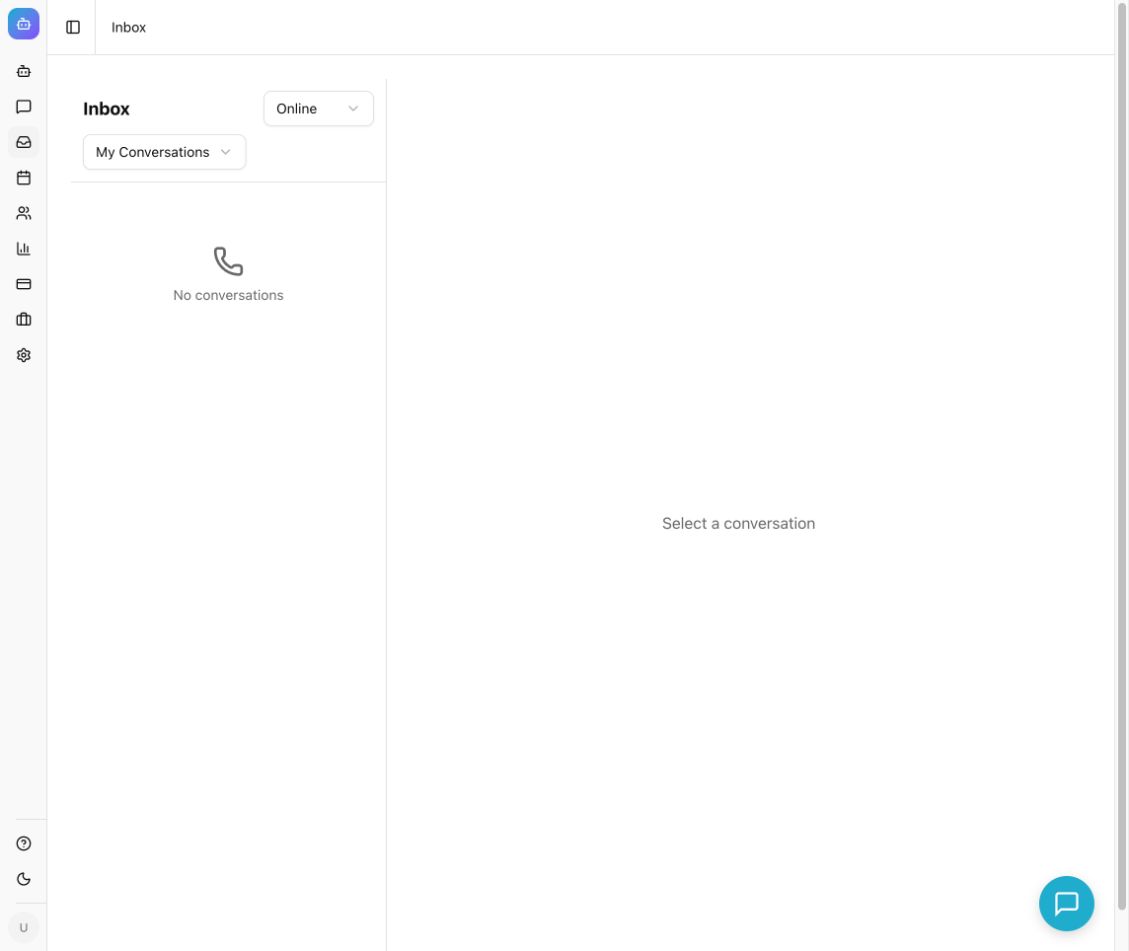
Example from the Chyt.ai dashboard (September 2026).
Configure escalation
- Open Chatbots → your chatbot → Settings → Handoff and turn on Enable Handoff.
- Set Escalation Message to explain the next step. Visitors can request assistance with a phrase such as “talk to a human.”
- If needed, enable Auto-escalate on Low Confidence. Set Confidence Threshold and test representative questions. A higher threshold can send more conversations to your team.
- Optionally enter a Webhook URL and Webhook Secret under Webhook Notification. Your receiving service should validate the HMAC-SHA256 signature in
X-Chyt-Signaturebefore acting on a request. - Optionally set Redirect URL for a support or scheduling page. The visitor is shown a link after escalation.
- Write an accurate Offline Message, then select Save Changes.
- If the chatbot uses a flow, connect the relevant route to a Handoff node. Save and test the flow, then activate it when ready.
Handle the conversation
- Open Inbox from the dashboard and set your availability to Online, Away, or Offline.
- In a separate visitor conversation, request a human. Return to the inbox and choose Unassigned to find new work.
- Open the conversation and read its history before replying.
- Select Claim to take responsibility. Use My Conversations to return to conversations assigned to you; All broadens the queue view.
- Enter your response in Type your reply... and send it. Confirm in the visitor window that the reply arrives before relying on this channel for live support.
- Select Resolve after the visitor's issue is handled. Record any knowledge improvement needed by reviewing the original conversation.
What you should see
A handoff becomes visible to the team, a claimed conversation can receive a human reply, and resolution updates its state. Transfer is currently displayed as a disabled control; do not build a workflow around transferring assignments through that button.
Troubleshooting
- The flow test only says it would escalate: Test Flow previews the handoff. Use a real chat session to verify the inbox and delivery.
- No conversation in Unassigned: check the workspace, the chatbot's Handoff setting, and All or My Conversations.
- Too many automatic handoffs: review the confidence threshold and improve the underlying sources or instructions.
- Webhook did not reach your helpdesk: verify the destination, its availability, and signature handling with the receiving service. Keep the webhook secret private.
- A visitor expects an immediate response while agents are offline: revise the offline and escalation messages to match your support process.
Continue learning
Flow routing · Conversation review and analytics · Messaging channels