Connect messaging and phone channels
Configure available WhatsApp, Slack, Microsoft Teams, email, SMS, and phone channels and verify delivery end to end.
On this page
Before you begin
Have access to the chatbot and the relevant provider account. Each channel requires both an eligible plan and a configured, available provider. A channel card appearing in the dashboard does not mean that its provider is ready for your workspace.
Open Chatbots → your chatbot → Settings → Channels. Read any Unavailable message before entering credentials. Contact support if provider onboarding is needed.
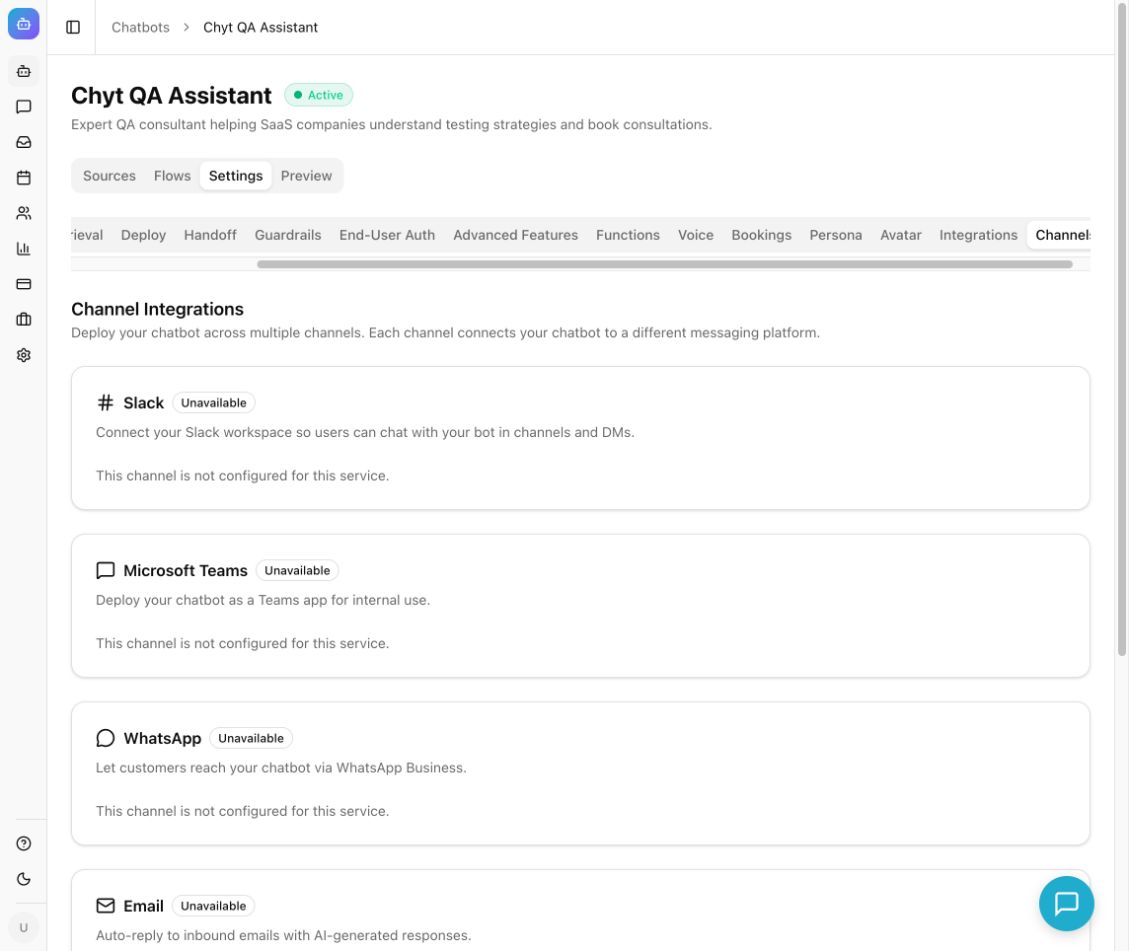
Example from the Chyt.ai dashboard (September 2026).
Connect an available channel
- Select the channel you need in Channel Integrations and confirm that it is available.
- Prepare the values shown in the channel's form using the table below. Use the provider account that should serve this chatbot.
- For Slack, select Connect to Slack, choose the intended workspace, and complete the provider authorization. Return to Chyt and verify Connected to workspace.
- For other available channels, fill in the displayed fields and select Connect. A successful active configuration shows Connected.
- Complete any provider-side app, number, inbound routing, or webhook setup required for that channel. If the dashboard does not provide those instructions or the provider is not onboarded, ask support for the setup specific to your account.
- Send a harmless test message from a separate visitor account, address, or number. Check both the reply in the provider and the corresponding conversation in Chyt.
- To update an existing manual connection, edit the fields and select Save Config. To remove it, use Disconnect, then check that you no longer rely on that route for incoming enquiries.
Channel setup reference
| Channel | Dashboard fields or action | Provider requirement |
|---|---|---|
| Slack | Connect to Slack | Permission to authorize the app in the chosen workspace. |
| Microsoft Teams | App ID, App Password | An appropriately configured Teams/Bot application. |
| Phone Number ID, Permanent Access Token, Meta App Secret | A WhatsApp Business number registered in Meta. Follow Connect a WhatsApp Business number. | |
| Inbound Email | A supported inbound-mail route for that address. Entering an address alone does not redirect its mail. | |
| SMS | Phone Number | A supported Twilio number and configured inbound/outbound service. |
| Voice (Phone) | Phone Number | An eligible phone-channel plan, provisioned phone route, and available voice service. |
Browser Voice settings and Voice (Phone) are separate controls. Connecting a phone number is not the same as enabling the microphone in the web chatbot. WhatsApp chat integration is also separate from the platform's visitor OTP verification service.
What you should see
The card displays Connected, and a real test confirms that an incoming message reaches the correct chatbot and that its response reaches the sender. Provider delivery is the final check; a saved configuration alone is not delivery confirmation.
Troubleshooting
- Unavailable: use the reason displayed on the card. Availability depends on provider configuration and service readiness.
- Plan notice: the requested channel is not included in the current plan; review Billing.
- OAuth opens the wrong workspace: cancel the provider flow and authorize the intended workspace.
- Connected but no messages arrive: verify provider-side routing, approved number/app, credentials, permissions, and provider delivery logs with your administrator.
- Credentials changed: update them in Chyt and repeat the real-message test. Keep tokens out of screenshots and support messages.
Continue learning
Voice chat · Human handoff and inbox · Integrations and functions