Connect integrations, webhook functions, and the API
Install available integration tools, define custom functions, and create a private API key for server-side use.
On this page
Before you begin
Have permission to connect the destination service and understand what each tool can read or change. Test with a sandbox or harmless record. Provider credentials and OAuth approval are required even when an integration is listed in Chyt.
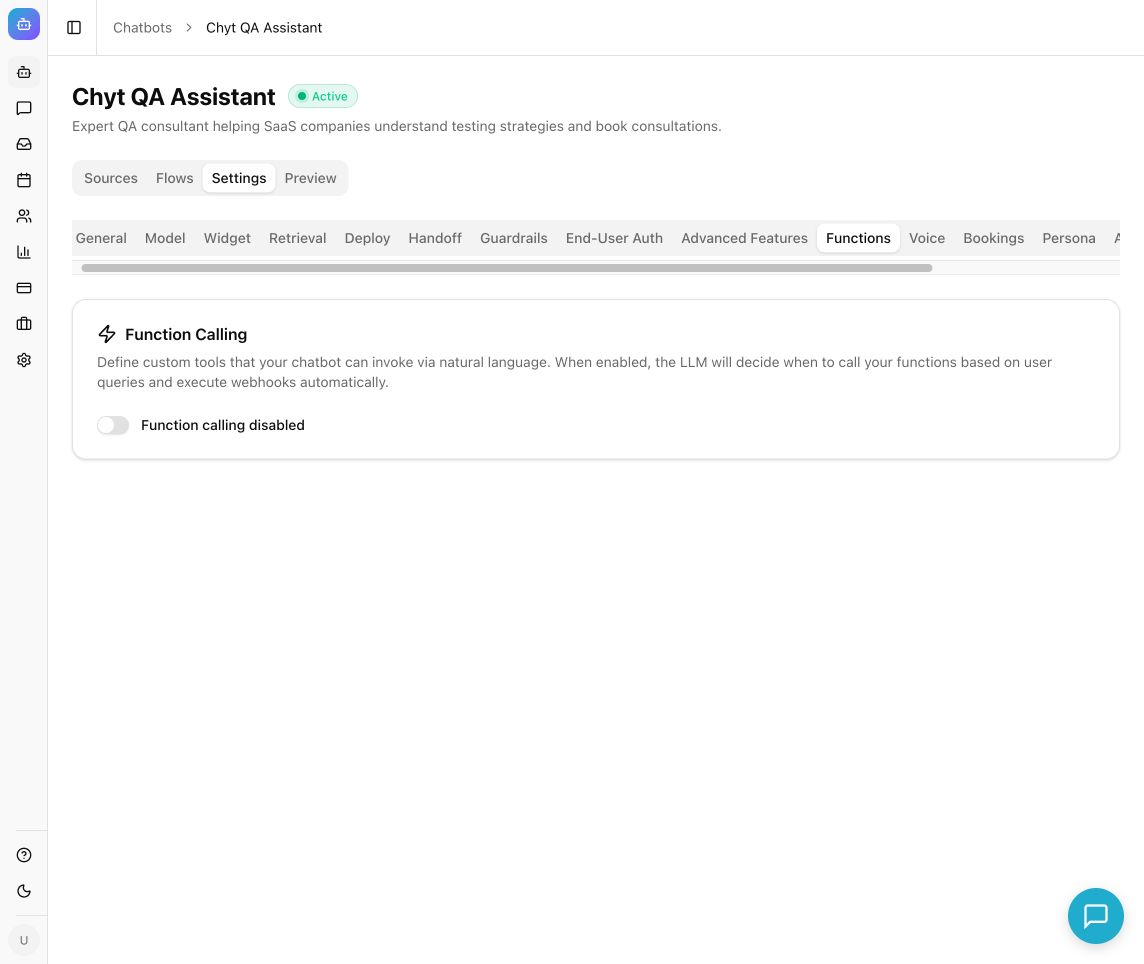
Example from the Chyt.ai dashboard (September 2026).
Install an integration's functions
- Open Chatbots → your chatbot → Settings → Integrations.
- Review Available Integrations. The catalog can include Google Calendar, Google Sheets, Slack, HubSpot, Jira, Zapier, and Email (SES); use what is available and configured for your environment.
- Select Connect. Complete OAuth for integrations that use it, or enter the requested credential fields for API-key/webhook integrations.
- Return to Connected Integrations and check the status. Select Install Functions for the integration.
- Open Settings → Functions and confirm the installed tools and their active state. Enable Function Calling if needed.
- Ask a specific test question in Preview that should invoke one tool. Confirm the result in the destination service; the chatbot's success text alone is not sufficient evidence of a change.
- Use Uninstall to remove the integration's installed functions or Disconnect to remove its connection when it is no longer needed. Review both the tool list and connection afterward.
Create a custom webhook function
- In Settings → Functions, enable Function Calling and select Add Function.
- Enter a clear Name and Description. Describe when the chatbot should use the function and what information it needs.
- Define Parameters (JSON Schema) for the arguments your endpoint accepts. Use an object with named properties and an explicit required list, for example:
{"type":"object","properties":{"order_id":{"type":"string","description":"The customer's order reference"}},"required":["order_id"]}
- Enter the real Webhook URL, select the appropriate HTTP Method, and supply Webhook Headers (JSON) if your service requires authentication.
- Set Active and select Create. For an existing function, use Update after editing it.
- Test with an order or record intended for QA and inspect the destination's response. Do not leave Webhook URL blank for a production action: a blank URL is a mock function that returns success without contacting a service.
Create an API key
- Open workspace Settings → API Keys and select Create API Key.
- Enter Key Name, such as “Support backend,” then select Create Key.
- Use Copy to Clipboard and store the key in your backend's secret store. It is shown only once; select Done after saving it securely.
- Use the current API contract for the endpoint you need and keep the key on your server. Do not put it in widget code, browser JavaScript, screenshots, or public repositories.
- Revoke keys that are no longer required using their control in the API key list, and update dependent services before removing a key still in use.
What you should see
Connected services have installed, active tools; real webhook tests create or retrieve the intended result. API keys support authenticated developer integrations within their permitted scope. Function calling uses AI to decide when to invoke a tool, so relevant AI allowance and model availability apply. The flow canvas's API call (coming soon) action is a separate, unavailable feature.
Troubleshooting
- Connected but no tool runs: install the functions, enable Function Calling, check Active, and make the description specific.
- Tool claims success but nothing changed: ensure the webhook URL is not empty and verify provider permissions and destination records.
- Invalid JSON: check both parameter schema and headers with a JSON validator; headers must be a JSON object.
- OAuth or provider failure: recheck the chosen account, consent, scopes, and provider setup with your administrator.
- Lost API key: create a replacement and revoke the old key; the original full value cannot be displayed again.