Manage workspace members, account security, and audit logs
Update workspace details, invite teammates with appropriate roles, secure your account, and inspect recorded activity.
Updated 3 min read
On this page
Before you begin
Select the intended workspace before making changes. Organization, team, billing, and credential controls depend on your current role. Keep at least one owner able to access the workspace, and give teammates only the access they need.
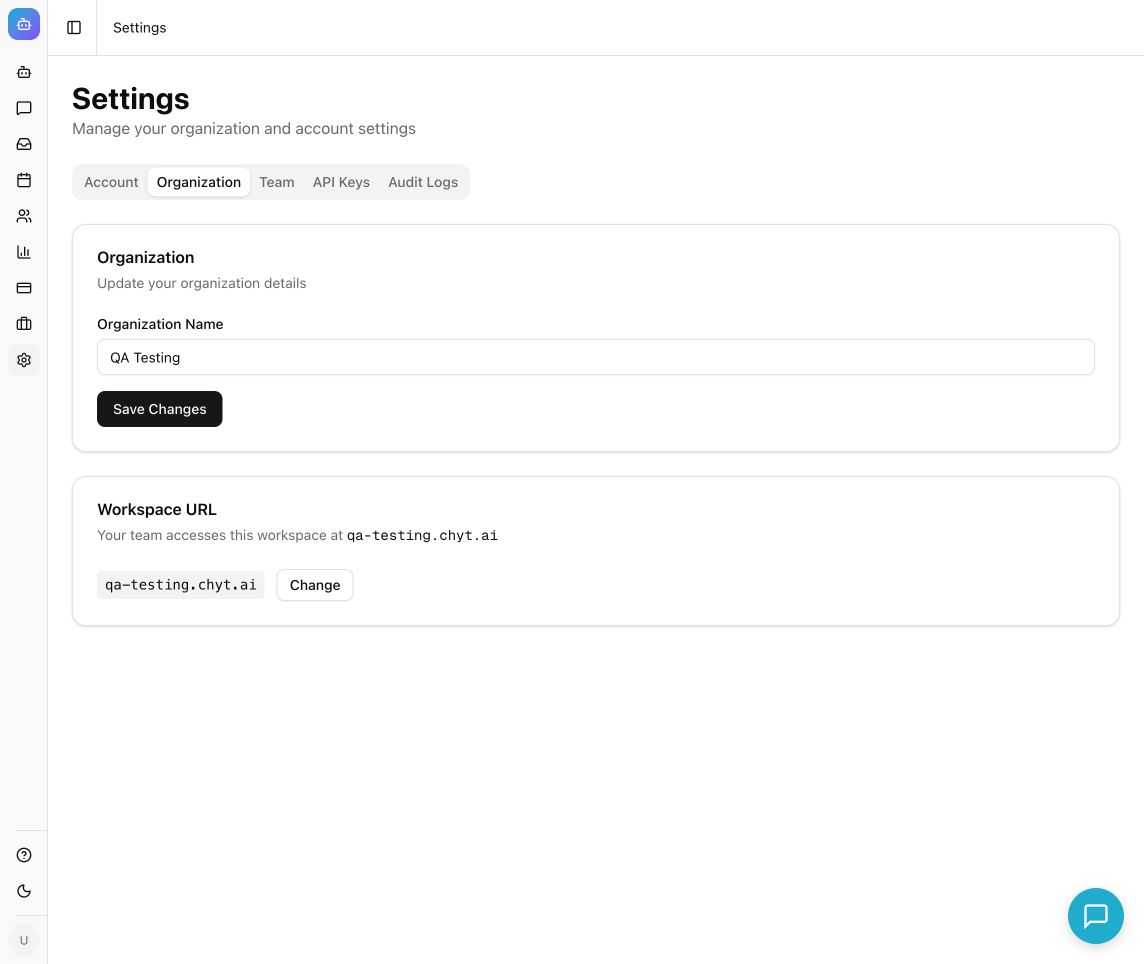
Example from the Chyt.ai dashboard (September 2026).
Maintain your account
- Open dashboard Settings → Account.
- In Profile, review your email and role. Edit Display Name if needed and select Save Profile.
- To change your password, fill in Current Password, New Password, and Confirm New Password, then submit the password-change form.
- Review Two-Factor Authentication (WhatsApp). A verified phone number is required; the panel explains when one is missing.
- If available, select Enable and confirm that the panel shows Enabled. Future sign-in follows the WhatsApp verification requirement.
- If you later need to disable it, use Disable and enter the code sent to your verified number in the on-screen dialog. Enter codes only in the intended authentication screen.
Manage organization and team
- Open Settings → Organization. Update Organization Name and select Save Changes.
- Review Workspace URL before changing the subdomain. Tell teammates about any resulting URL change and check existing links after saving.
- Open Settings → Team and select Invite Member.
- Enter the teammate's Email and select Admin, Member, or Viewer according to their responsibilities. Use Admin only when administrative access is required.
- Submit the invitation and verify the member's entry and assigned role. Have the teammate confirm that they can access the intended workspace.
- Review existing member roles periodically. Use the role selector or removal control only for the member you intend to change.
Review recorded activity
- Open Settings → Audit Logs.
- Use the search, date, and event filters to locate relevant activity. Event filters include login, configuration changes, source additions, deployments, API-key activity, member invitations, and billing.
- Read the event, actor, timestamp, and status. Use Refresh to load the latest page.
- Select Export when you need a copy of the filtered, loaded records. Page-level success and warning counts describe the current page; do not treat them as a complete security assessment.
- For an unexpected event, preserve the relevant time and action, review the actor's access, and contact your workspace administrator or Chyt support.
What you should see
The workspace shows the intended members and roles, account settings persist, and recorded actions can be inspected through Activity Log. An audit list helps investigate events but is not a guarantee that every provider-side action or security issue is represented.
Troubleshooting
- A control is missing or denied: confirm your current workspace and role with its owner.
- Two-factor setup requires a phone: follow the account's verified-phone guidance; do not substitute another person's number.
- A teammate cannot see expected data: verify the invitation email, chosen workspace, role, and sign-in account.
- An event is missing: broaden date/event filters and inspect pagination before concluding no event occurred.
- API credentials need changing: use API Keys and update dependent services; see the integration guide for safe key handling.
Continue learning
API keys and integrations · Visitor authentication · Billing