Enable and tune browser voice chat
Set languages, voices, session duration, and greetings, then test a real voice conversation.
On this page
Before you begin
Use a microphone-enabled browser and a chatbot you can edit. Voice needs an available service, an enabled chatbot, sufficient workspace allowance, and any required visitor verification. AI-powered voice responses also depend on AI credits. Allowances are shared across all chatbots and visitors in the workspace.
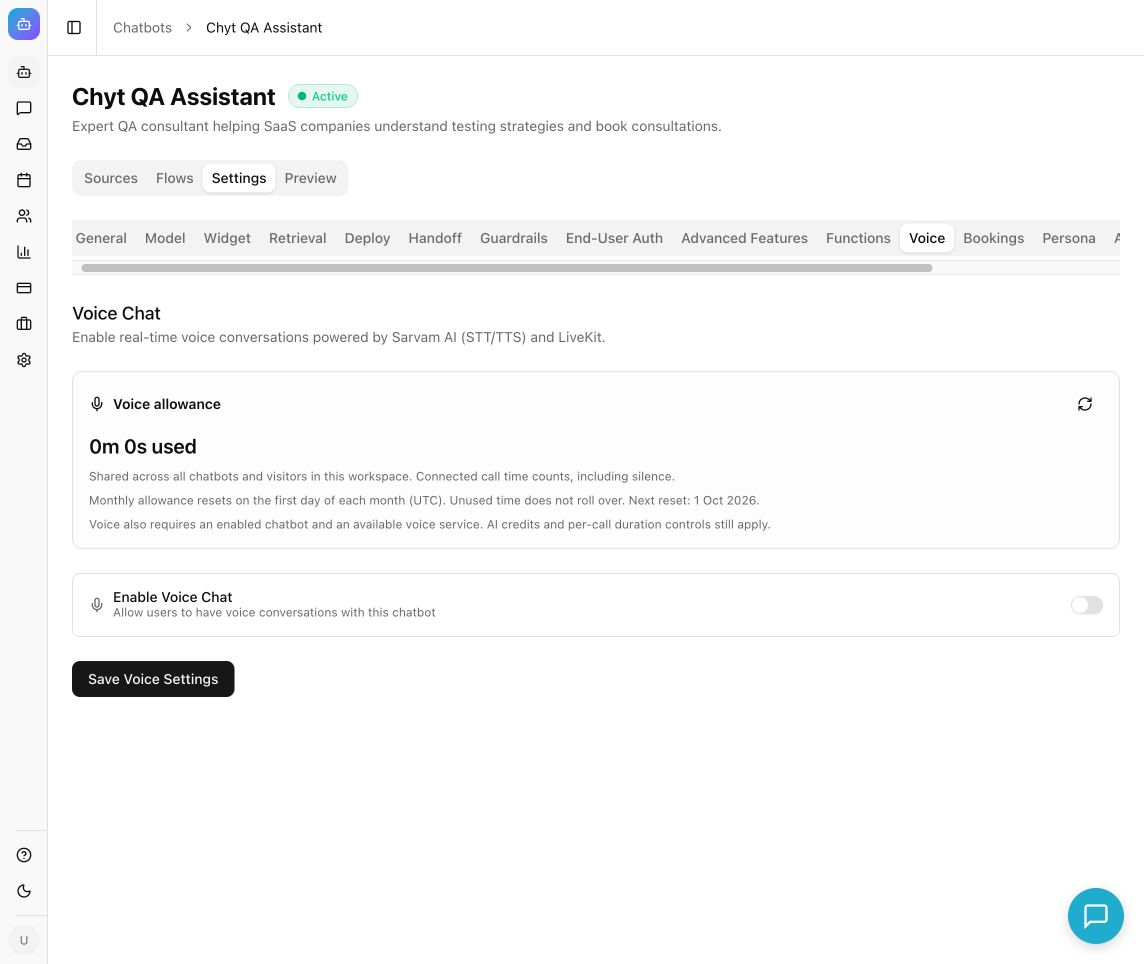
Example from the Chyt.ai dashboard (September 2026).
Configure voice
- Open Chatbots → your chatbot → Settings → Voice.
- Review Voice allowance before testing. A trial includes one hour for the entire trial; Starter includes five hours per UTC calendar month. Check the live card for your plan's current entitlement and remaining time.
- Turn on Enable Voice Chat.
- Under Languages, choose Default Language, then select Allowed Languages. The current options include English, Hindi, Tamil, Telugu, Kannada, Malayalam, Marathi, Gujarati, Bengali, Punjabi, and Odia.
- Under Voices, choose the simple or detailed selection mode. Simple mode lets you choose Female Voice, Male Voice, and Default Selection. Detailed mode lets you choose Default Voice, Allowed Voices, and optional Custom Display Names.
- Under Session Settings, set Max Session Duration. Choose a duration appropriate for the task; a room can end earlier if the workspace's remaining allowance is shorter.
- Set Auto-Greeting according to whether the bot should speak first, then select Save Voice Settings.
- Open the chatbot's Preview or its public chat page, start voice, and approve the browser's microphone permission. Complete any verification prompt shown.
- Ask a short question in each enabled language you intend to offer. Listen to the full answer, check pronunciation and interruption behavior, and end the call when finished.
- Return to Voice allowance and refresh it to confirm usage after the call closes.
What you should see
The visitor can start a browser voice session and use the offered language and voice choices. Connected call time counts, including silence. Active or connecting calls can reserve time; unused time is returned after confirmed settlement. Monthly allowances reset on the first day of the month in UTC; unused time does not roll over. Trial time does not renew.
Troubleshooting
- Microphone does not work: check browser and operating-system permissions, select the correct device, and close applications using the microphone.
- Voice is unavailable: check the service message, whether voice is enabled, and the workspace allowance. An enabled setting does not override provider unavailability.
- The call ends sooner than expected: inspect session duration, remaining or reserved time, visitor safeguards, and AI credits.
- Usage says unavailable: refresh; an unavailable reading does not mean zero usage.
- A speaker choice changed after saving: simple mode saves the selected male/female voices as the allowed set. Use detailed mode for a larger list.
Continue learning
AI credits and voice allowances · Visitor verification · Phone channels