Connect a WhatsApp Business number
Register your number in Meta, create a permanent token, connect it to a chatbot, and point Meta's webhook at Chyt.
On this page
Before you begin
You need a Meta developer account, a WhatsApp Business phone number that is not in use on the WhatsApp app on a phone, and a chatbot on a plan that includes the WhatsApp channel. Setup takes about 20 minutes and moves between Meta and Chyt three times.
| You will collect | Where it comes from | Where it goes |
|---|---|---|
| Phone Number ID | Meta → WhatsApp production setup | Chyt → WhatsApp card |
| Permanent access token | Meta Business Suite → System users | Chyt → WhatsApp card |
| Callback URL and Verify token | Chyt → WhatsApp card, after connecting | Meta → Configure Webhooks |
| App secret | Meta → App settings → Basic | Chyt → WhatsApp card |
Keep the access token and app secret private. They let anyone send messages as your business. Identifying details are blurred in the screenshots below.
Open or create your Meta app
- Sign in at developers.facebook.com/apps (opens in a new tab) and open the app that belongs to the business owning the number. If you have none, or your existing app's webhook already serves another system, select Create App: enter a name (Meta rejects names containing "WhatsApp"), choose the Connect with customers through WhatsApp use case, and attach your business portfolio. Meta asks you to re-enter your password before creating the app. Use a dedicated app for the chatbot, because a Meta app can send its webhooks to only one callback URL.
- From the app dashboard open Use cases and customize Connect with customers through WhatsApp. Keep the integration type on Integrate with API.
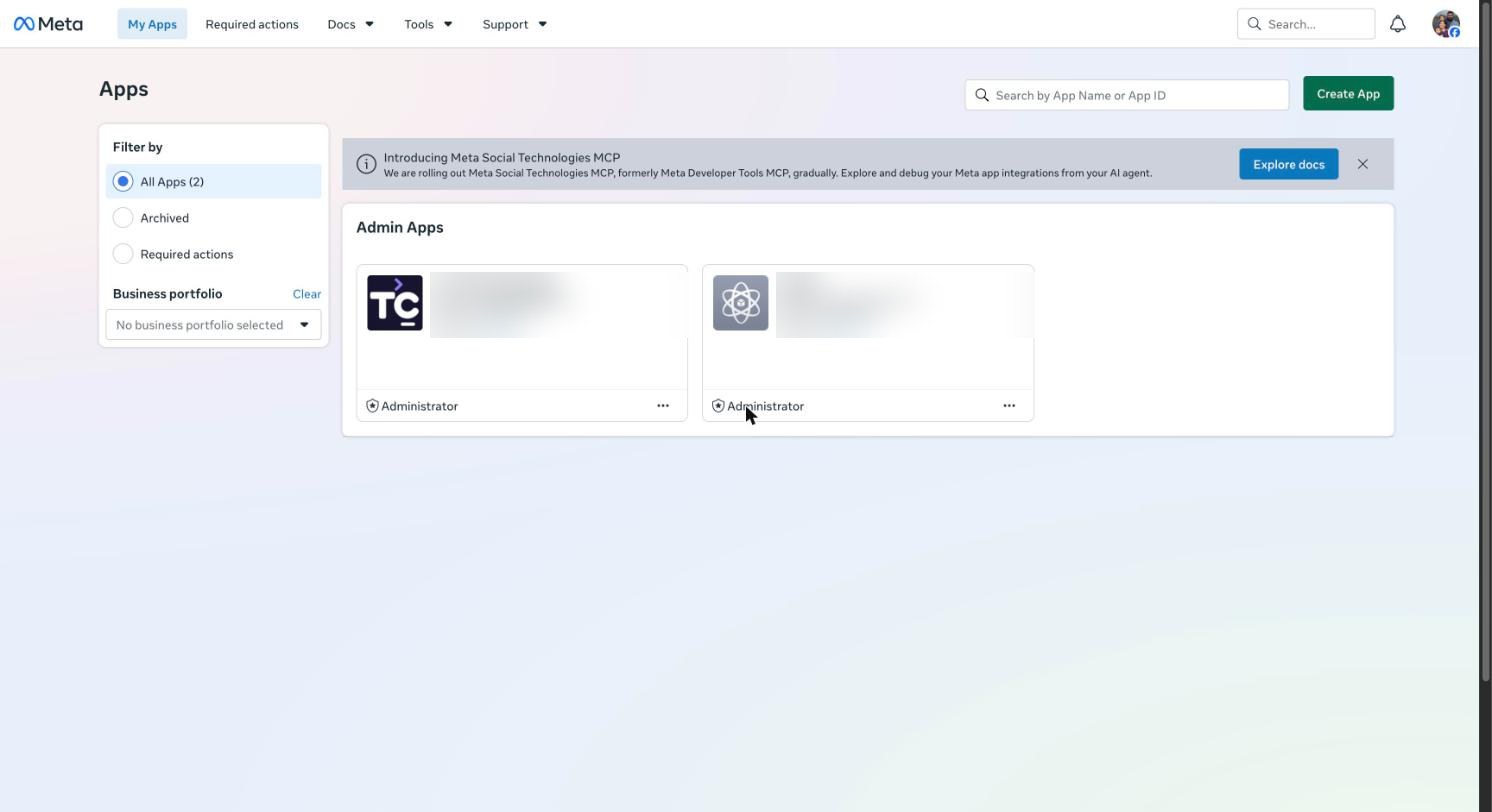
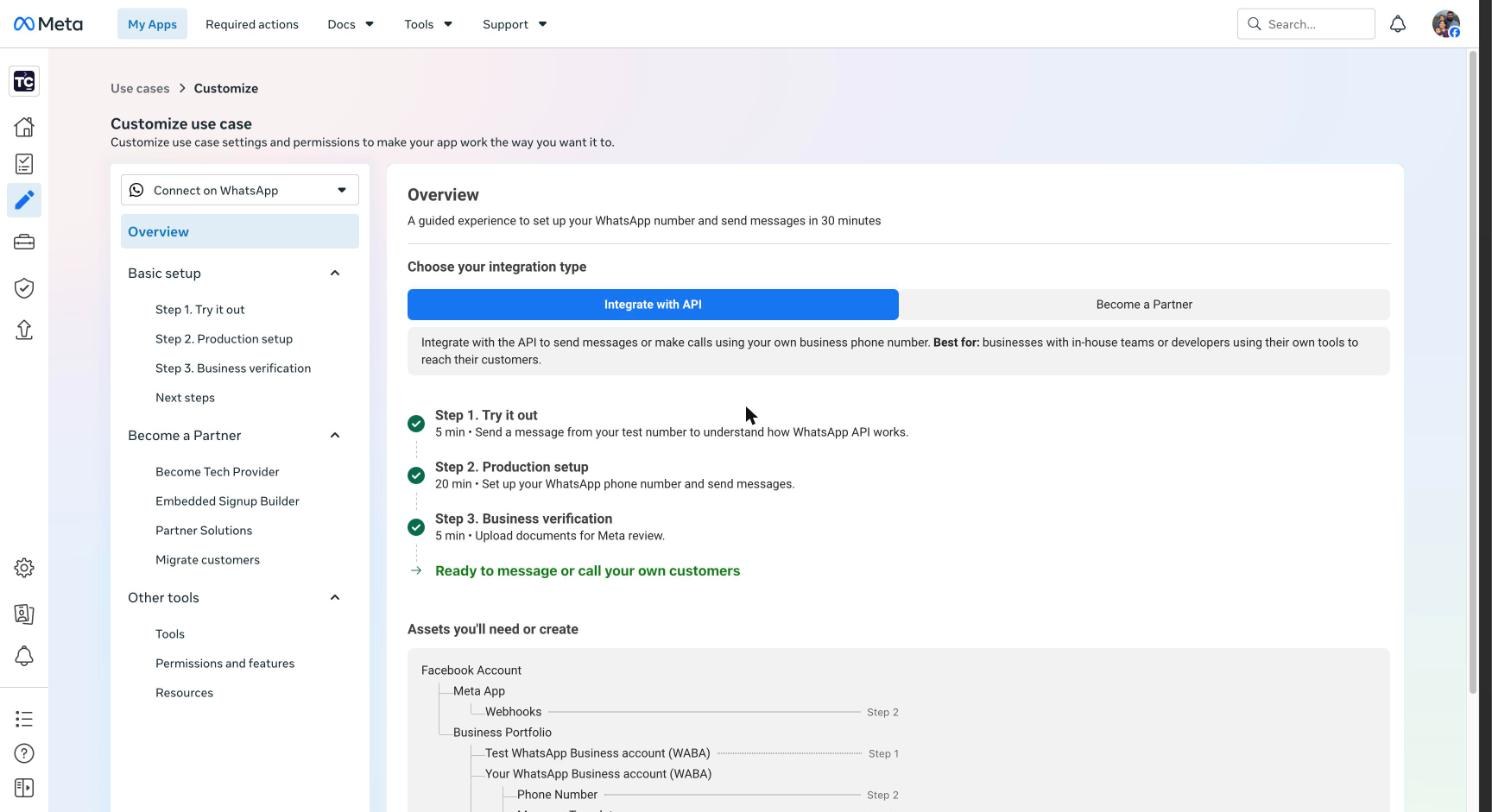
Meta for Developers (September 2026). Business verification, step 3 in Meta, raises messaging limits but is not required to start.
Register the phone number and copy its ID
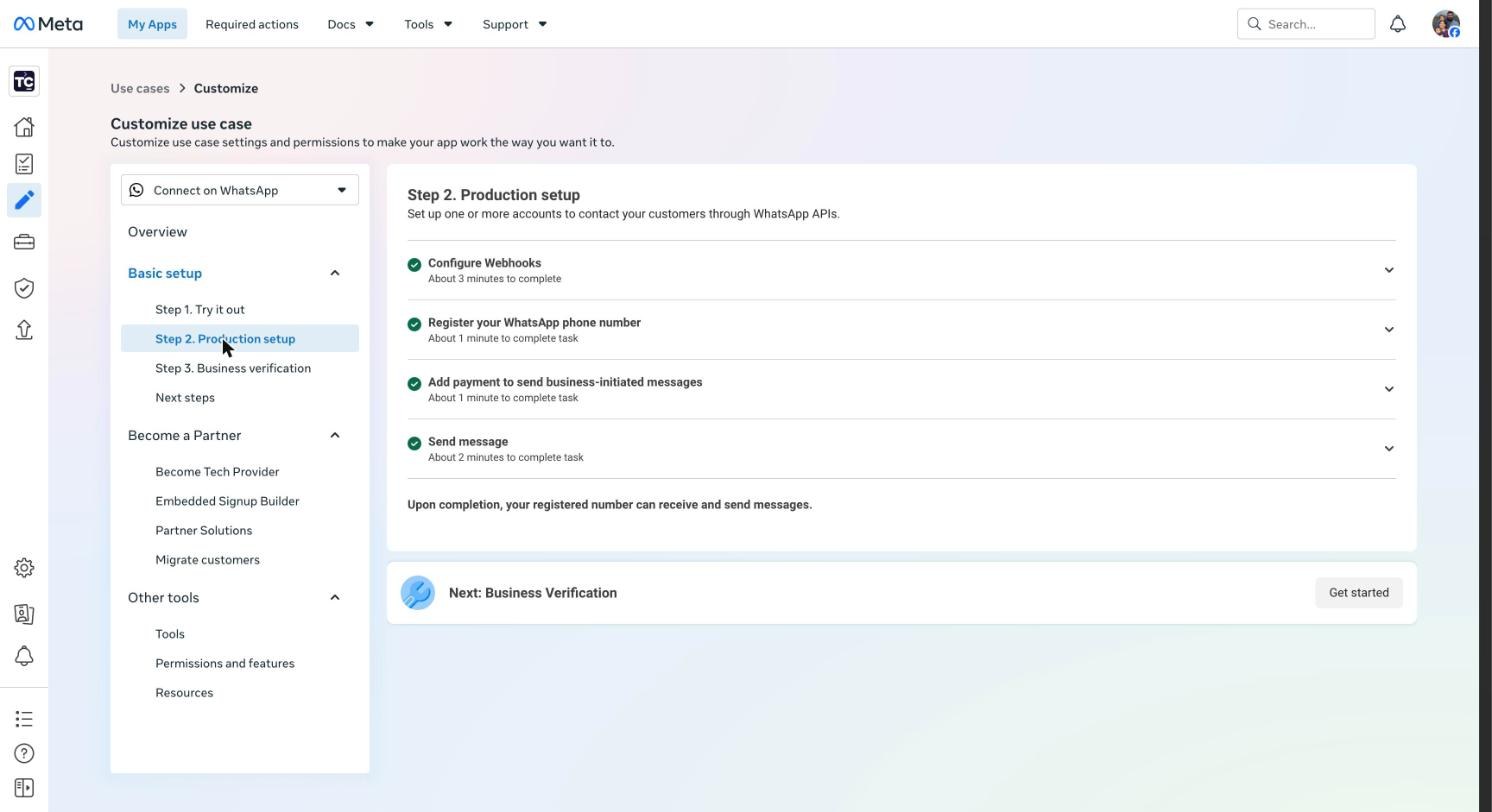
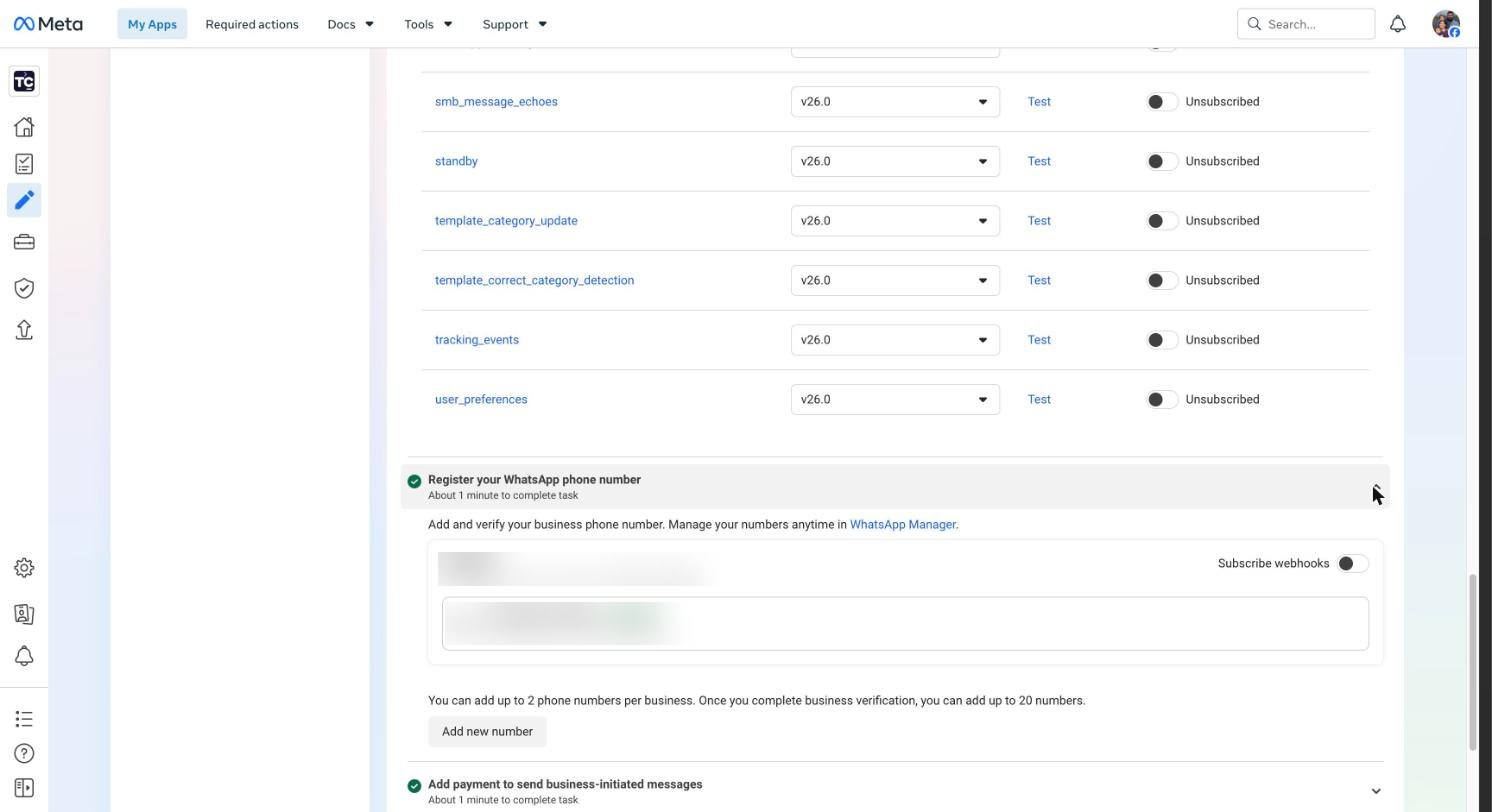
- Open Basic setup → Step 2. Production setup and expand Register your WhatsApp phone number.
- Add your business number if it is not listed. Meta sends a verification code by SMS or call.
- Copy the Phone Number ID shown under the number. It is the long numeric ID, not the phone number and not the WhatsApp Business Account ID.
- Turn on Subscribe webhooks on the business account card. Without it Meta never forwards incoming messages, even after the webhook is configured.
Create a permanent access token
The temporary token on Meta's "Try it out" page expires after 24 hours. Chyt needs a token that never expires, which comes from a system user in Meta Business Suite.
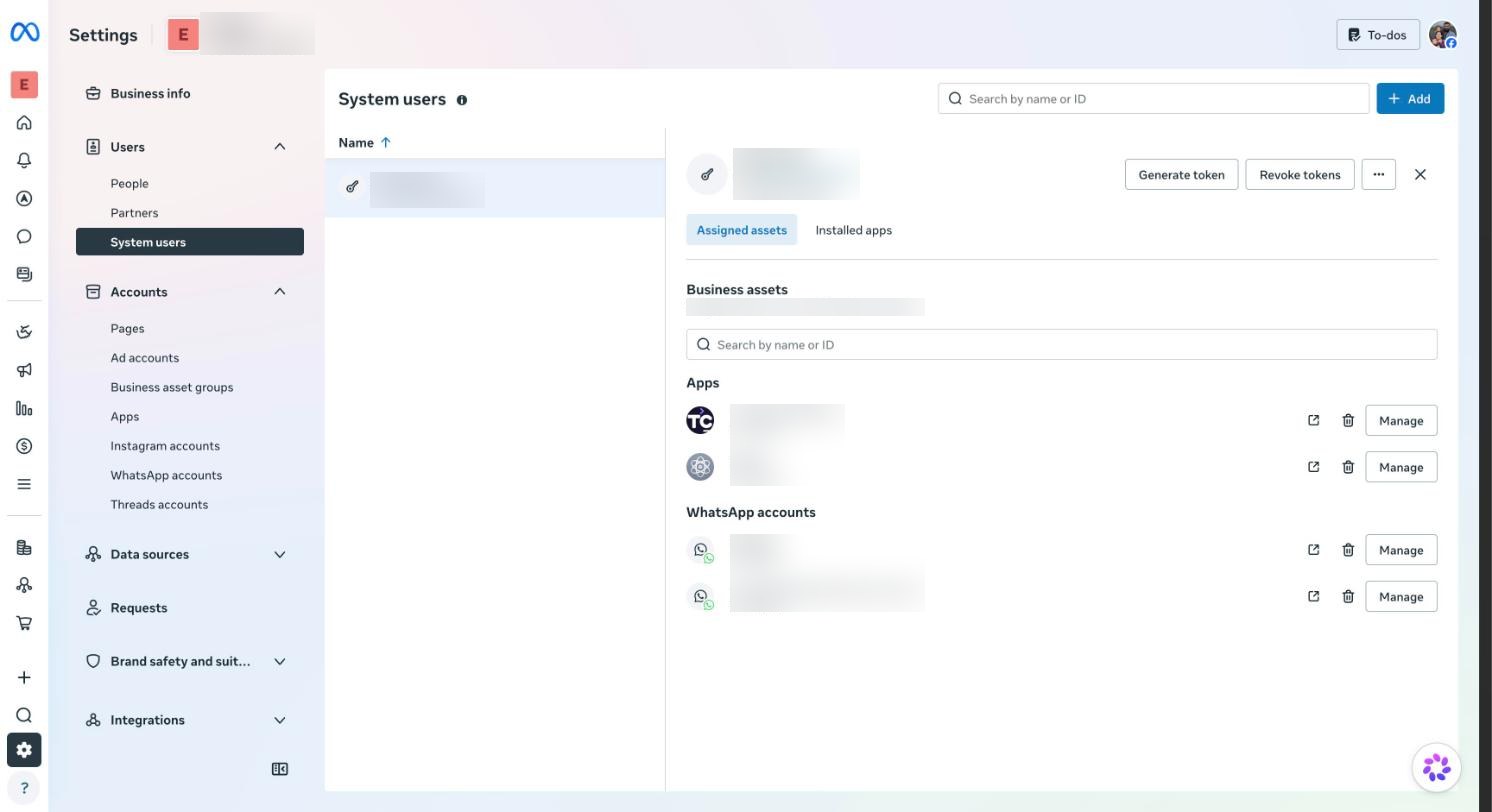
- Open Business settings → System users (opens in a new tab). Select Add if none exists, name it (for example "Chyt API") and give it the Admin role.
- Open the … menu next to Generate token and choose Assign assets. Under Apps, tick your Meta app and switch on Manage app (full access). Repeat under WhatsApp accounts for your WhatsApp Business account if it is not already assigned.
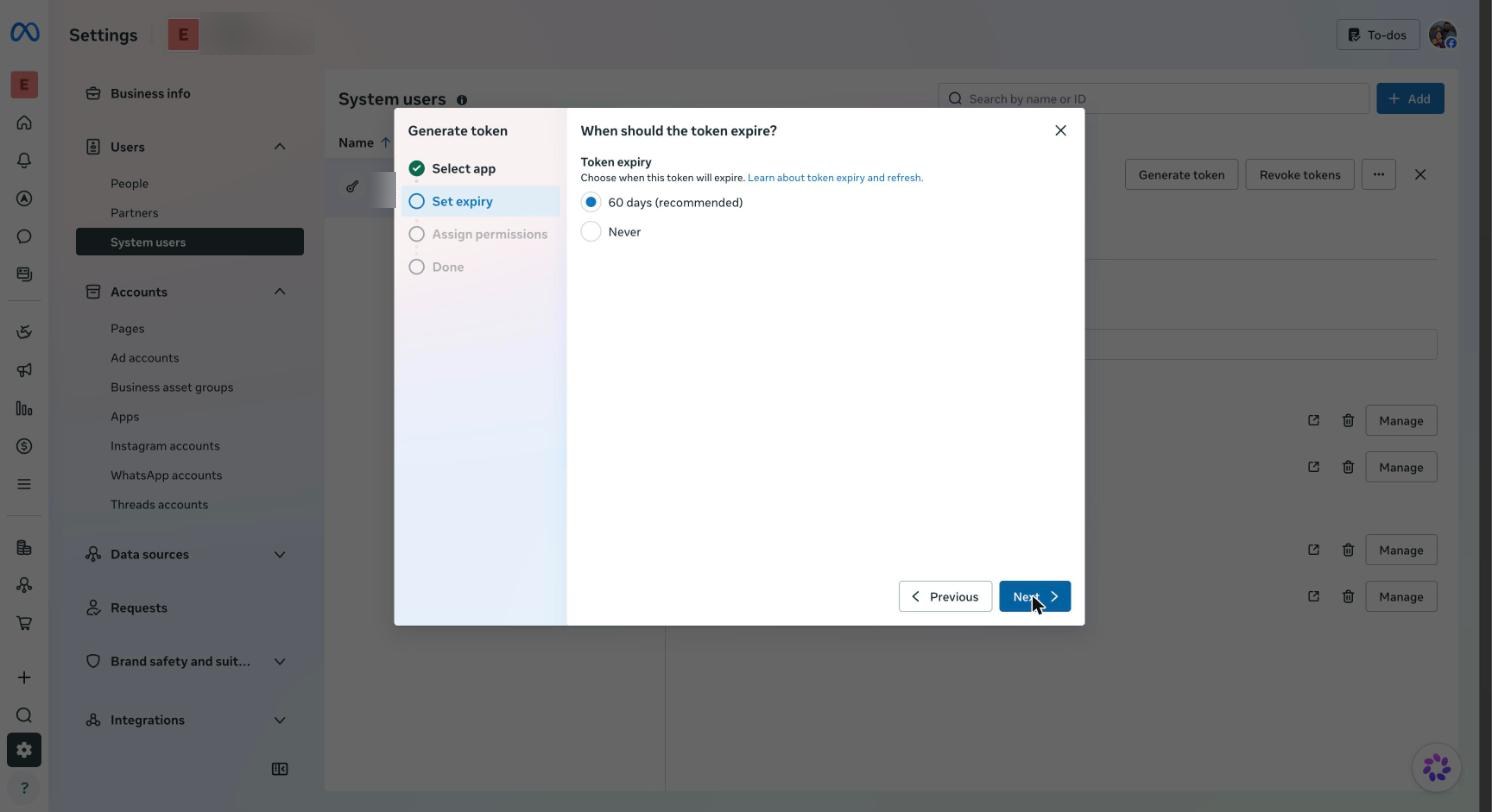
- Select Generate token, choose your app, and set expiry to Never.
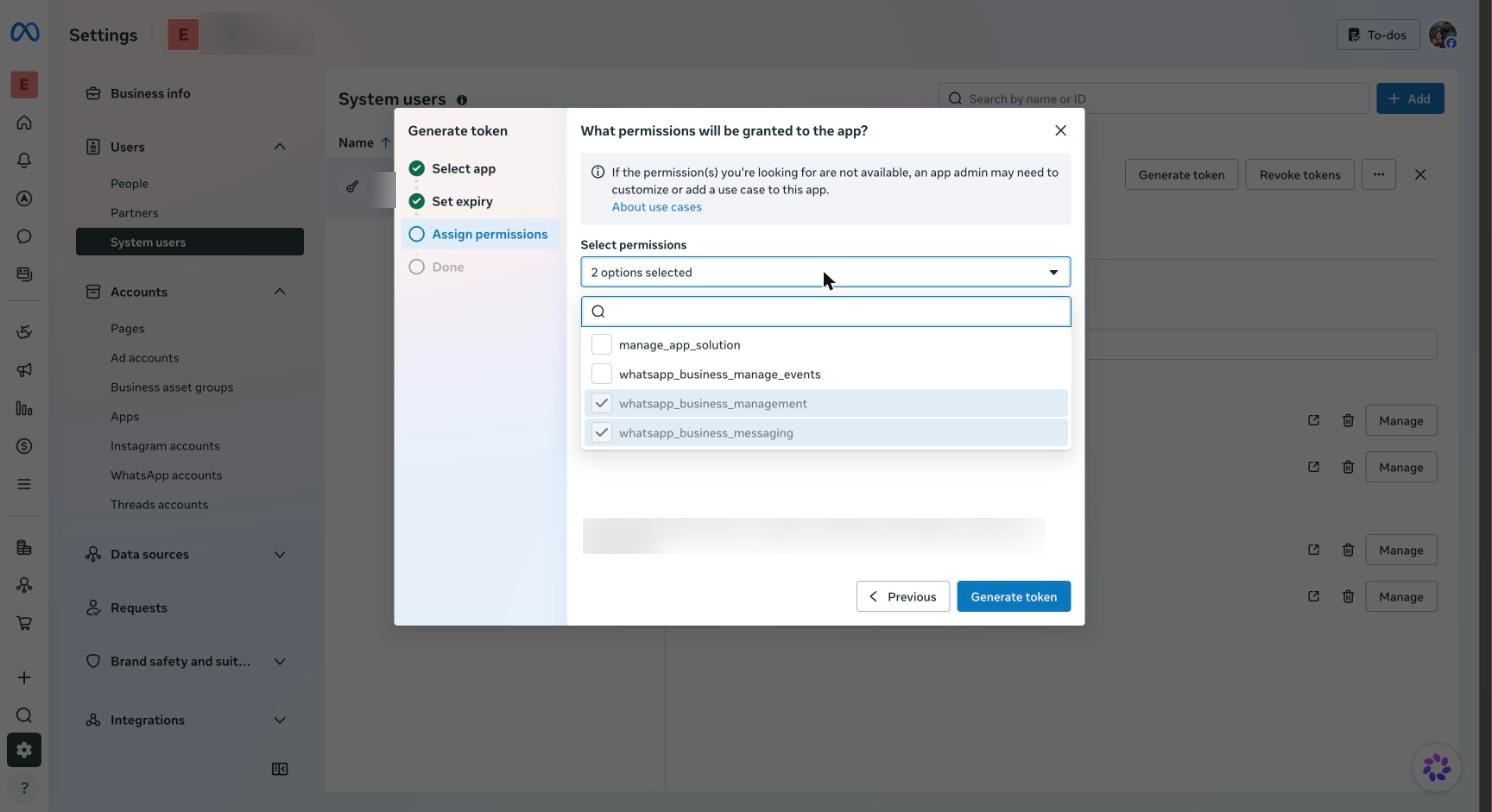
- Tick whatsapp_business_messaging and whatsapp_business_management, then select Generate token.
- Copy the token. Meta shows it once; keep it in a password manager until you paste it into Chyt.
Copy the app secret
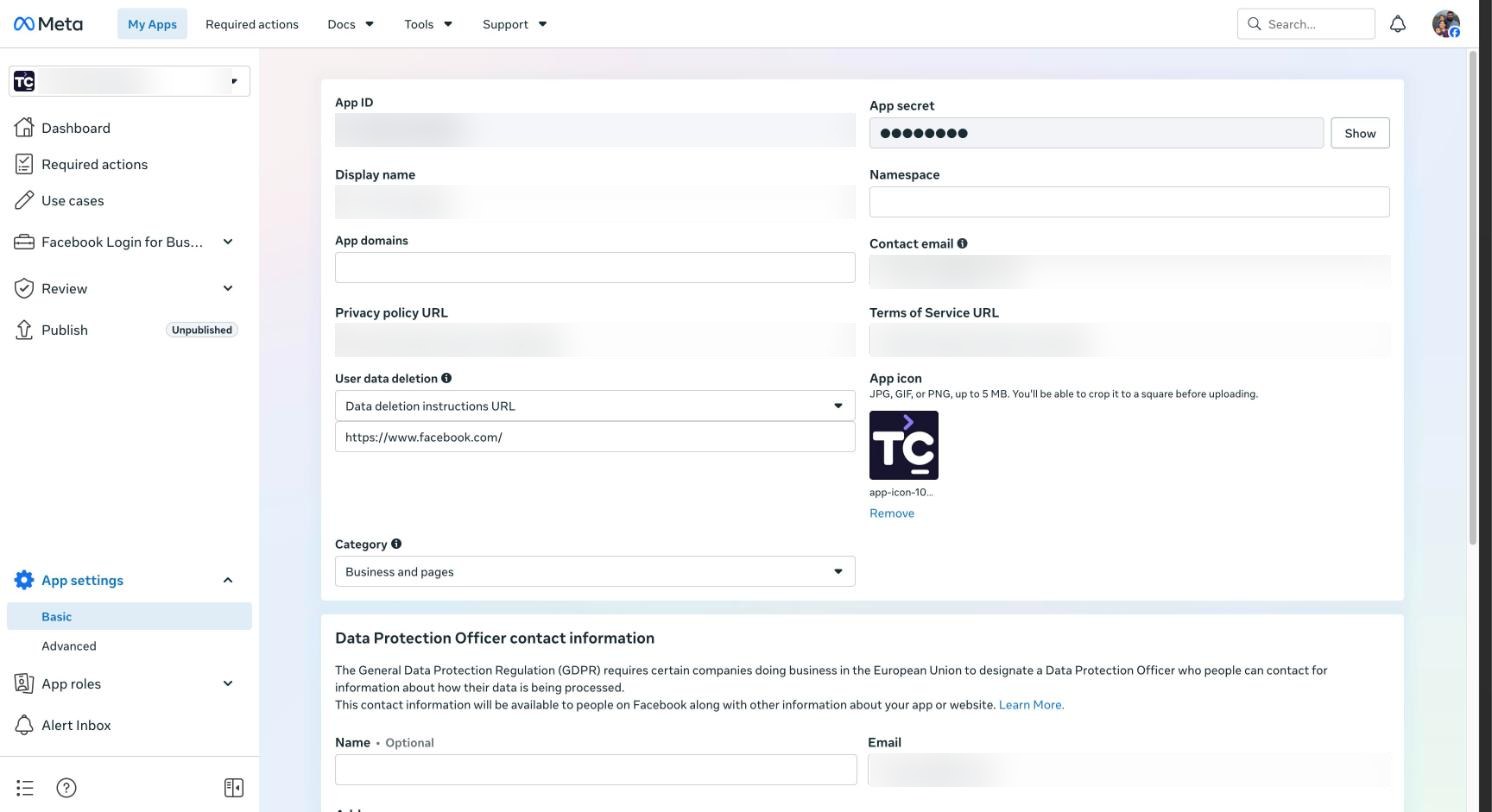
Chyt uses your Meta app's secret to verify that every incoming message really comes from Meta. Open App settings → Basic, select Show next to App secret, and copy it. Keep it as private as the access token.
Connect the number in Chyt
- Open Chatbots → your chatbot → Settings → Channels and find the WhatsApp card.
- Paste the Phone Number ID, the Permanent Access Token, and the Meta App Secret.
- Select Connect. Chyt verifies the token with Meta and shows Connected with your display number and verified business name.
- The card then shows Webhook setup in Meta with a Callback URL and a Verify token. Copy both.
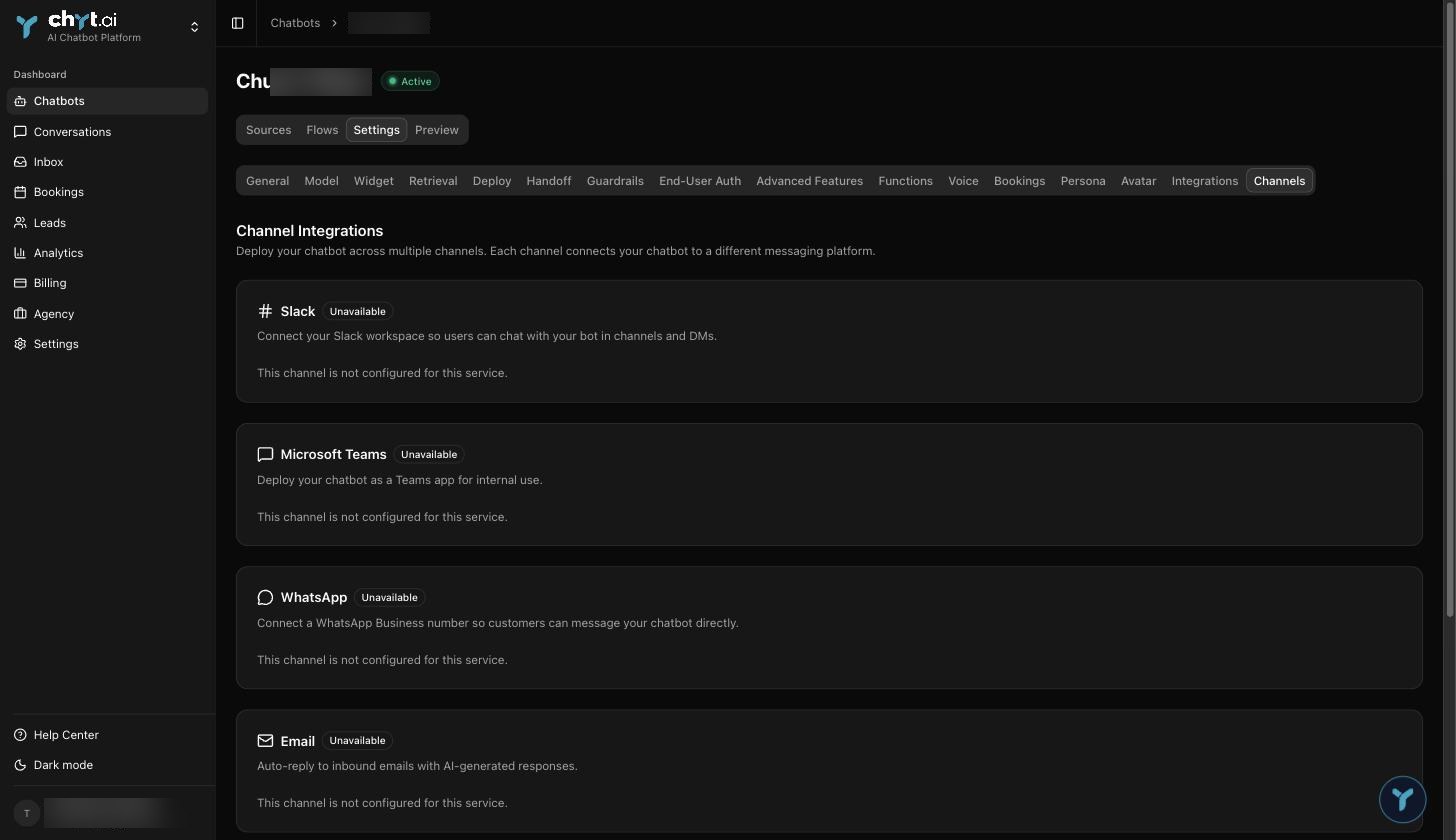
Example from the Chyt.ai dashboard (September 2026).
If Meta rejects the details, Chyt shows Meta's reason. Common causes are a mistyped ID, a token without both WhatsApp permissions, or a number already connected to another chatbot. A number can answer for one chatbot only.
Point the webhook at Chyt
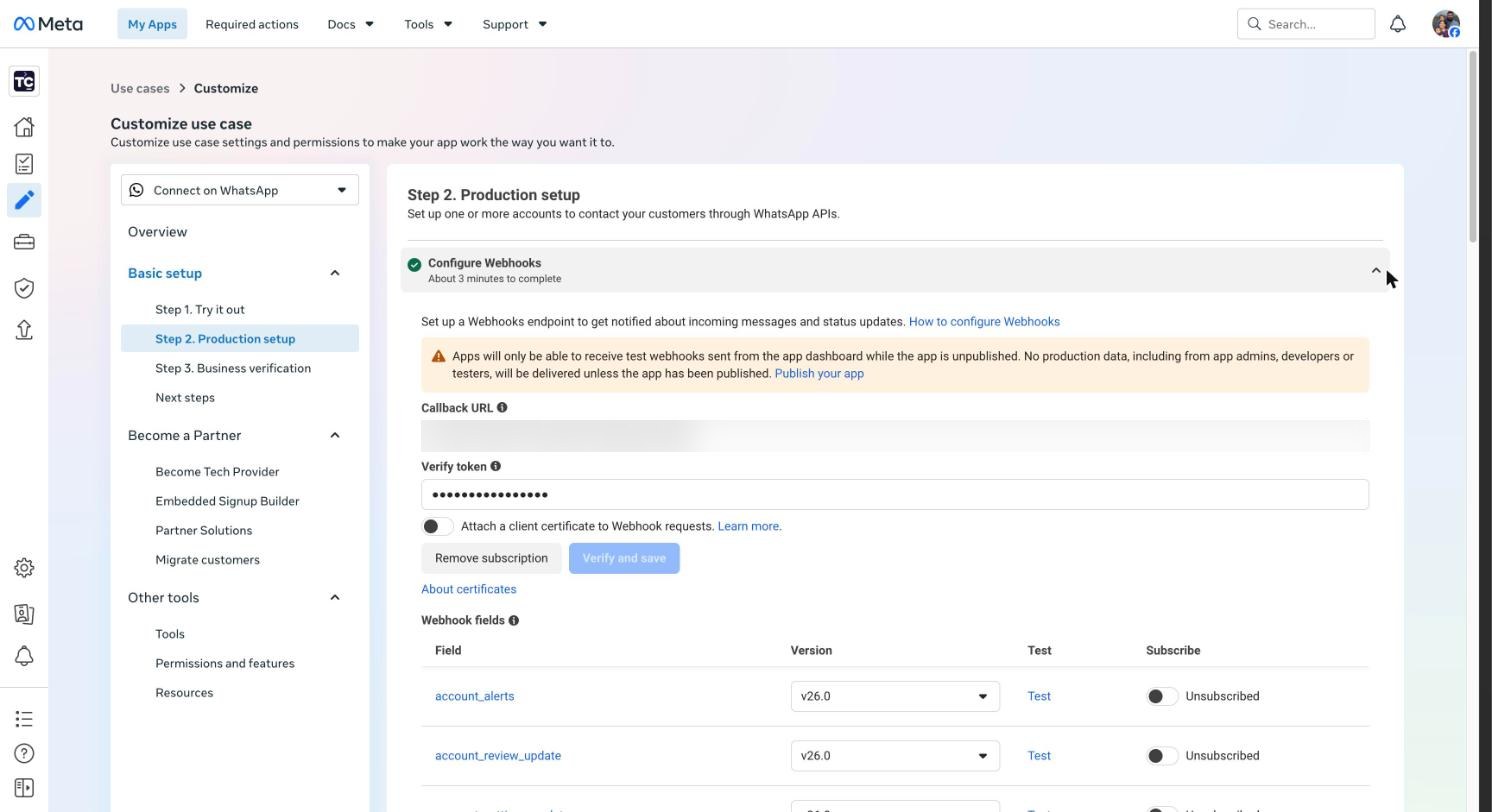
- Back in Meta, open Step 2. Production setup → Configure Webhooks.
- Paste the Callback URL and Verify token from Chyt and select Verify and save.
- In Webhook fields, switch messages to Subscribed. No other field is needed.
- Publish the app from Publish in the left sidebar. Unpublished apps receive test webhooks only, so real customer messages never reach Chyt. The Publish button stays disabled until App settings → Basic has a Privacy policy URL and a Category; the Terms of Service URL is worth setting at the same time.
- Optional: the Test link on the messages row sends Meta's sample payload. It uses a placeholder phone number, so Chyt acknowledges it without replying; it does not exercise your number.
What happens for your customers
- Every number becomes a lead. The first message from a new number creates a lead in Leads with the phone number recorded from WhatsApp.
- Contact details after the first reply. With Ask new contacts for their name, company and email switched on (the default), the chatbot asks three short questions after its first answer and saves the replies on the lead. People can reply skip to any question and are never asked twice.
- Guided flows with buttons. If the chatbot has active flows, options arrive as tappable buttons or a list. The menu always ends with Chat with our AI assistant and Leave a message for our team; a message left this way is stored on the lead for your team to follow up.
- AI answers per day. Each person gets the number of AI answers you set (default 10 per day). Flow replies, menus and team messages are not counted. When the limit is reached the chatbot explains how to continue.
What you should see
Send a WhatsApp message to your business number from any phone. Within a few seconds you should see a read receipt, a typing indicator, and the chatbot's reply. Follow-up questions keep the context of the conversation. The conversation appears in Conversations with a WhatsApp badge, and your team can reply from Inbox.
Replies to a customer's message within 24 hours are free. Add a payment method in Meta under Add payment to send business-initiated messages only when your business needs to start conversations itself.
Troubleshooting
- Meta rejected the credentials: re-copy the Phone Number ID (digits only) and generate a fresh token with both WhatsApp permissions and the WhatsApp account assigned to the system user.
- Number already connected to another chatbot: disconnect it on the other chatbot first.
- Verify and save fails in Meta: the callback URL or verify token has a typo or trailing space. Copy both again from the Chyt card.
- Webhook saved but no replies: confirm messages is Subscribed, Subscribe webhooks is on for the WhatsApp account, and the app is published.
- Needs attention on the card: Meta rejected the stored token, usually because it was revoked or expired. Paste a new permanent token and select Reconnect.
- Customer sent a photo or voice note: Chyt asks them to type the question. Media understanding is not supported yet.
Continue learning
Messaging and phone channels · Human handoff and inbox · Plans and AI credits