Flows & automation
How to build a flow-based chatbot without code
A step-by-step guide to building a no-code conversation flow: nodes, variables, buttons, conditions, lead capture, testing, activation and AI fallback.
On this page
To build a flow-based chatbot without code, plan the conversation first, then create a flow in a visual builder: add questions that store answers in variables, connect every button and condition to a destination, test each route, and activate it. In Chyt.ai this happens on a drag-and-drop canvas inside each chatbot's Flows tab, and no programming is involved.
This guide follows the real builder step by step, then covers design tips, common mistakes, and where an AI fallback fits.
What is a flow-based chatbot?
A flow-based chatbot is a chatbot that guides visitors through a conversation you designed in advance, using buttons, questions and branching rules. It is also called a decision tree chatbot or a deterministic chatbot, because the same answers always lead to the same replies. If you are still deciding between scripted and generated replies, start with our comparison of deterministic and AI chatbots.
In Chyt.ai, every active plan includes unlimited deterministic flow conversations, and messages handled entirely by flow nodes use no AI credits.
Plan the conversation before you open the builder
Ten minutes of planning saves an hour of rewiring. Write down:
- The goal. What should the visitor have achieved by the end: an enquiry saved, a question answered, a person contacted?
- The answers you need. List only what you will actually use.
- The branches. Where do different visitors need different next steps?
- The endings. Every path should finish with a closing message, an AI answer or a person.
How to build a flow in Chyt.ai, step by step
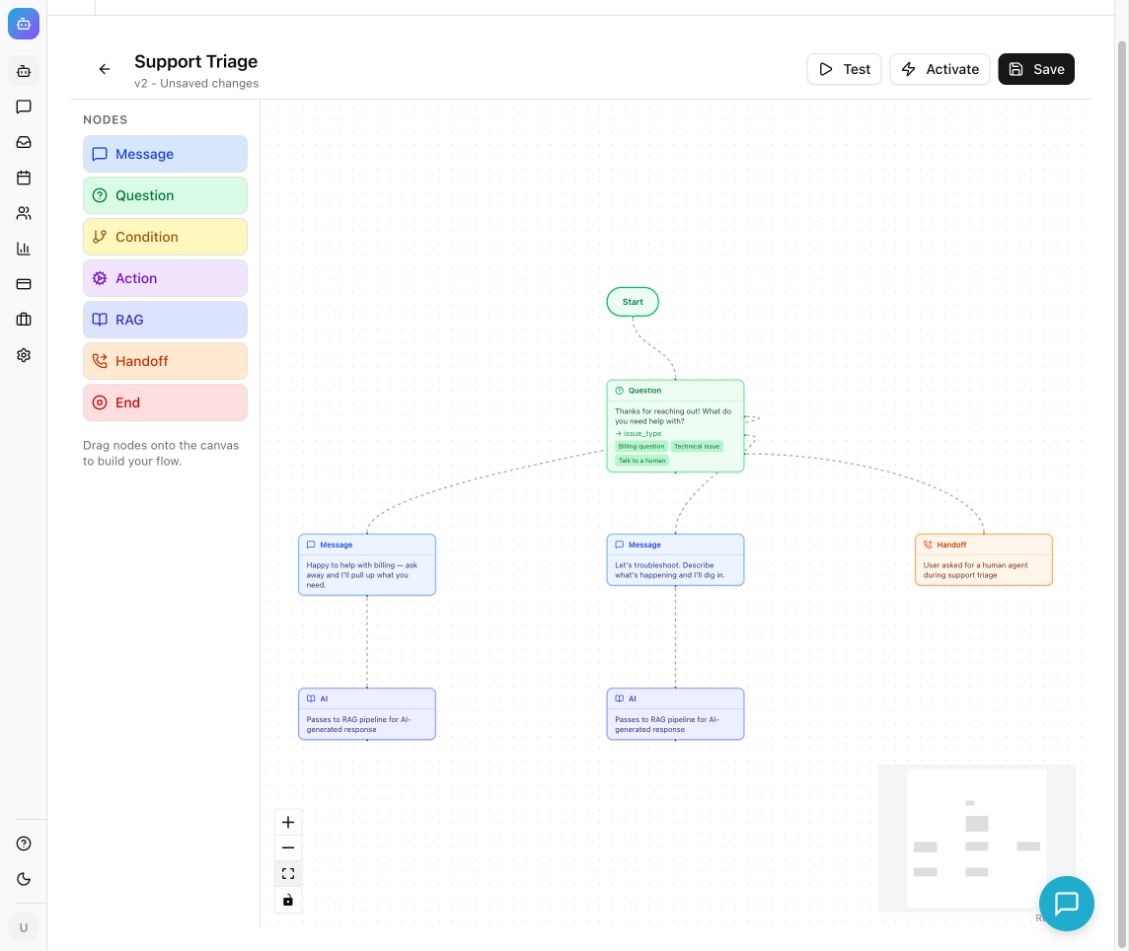
1. Create the flow
Open your chatbot and go to the Flows tab. Select New Flow, give it a clear name such as "Sales enquiry", and select Create. You can also choose From Template for a starting point, or use the AI Wizard to describe the flow in plain language and generate a draft. A generated draft is inactive until you have reviewed and activated it, so inspect its questions and connections first.
2. Add a welcome message
Click Message in the node palette, or drag it onto the canvas, and write your welcome text. Then select the Start node and set its Default / next connection to your message. The available nodes are Start, Message, Question, Condition, Action, RAG, Handoff and End.
3. Ask a question and store the answer
Add a Question node and connect the welcome message to it. Write the question, then set Store in variable to a short name such as customer_type. Choose the input type:
- Buttons for a closed list. Enter one choice per line.
- Free text for open answers such as a name. You can add optional quick replies, such as "Skip", which do not prevent other answers.
4. Connect each choice to its next step
Select the question and use Connections to choose a destination for each button. "New customer" might lead to a question asking for a name, while "Existing customer" leads to a question asking for a reference number. You can also draw connections with the handles on the canvas.
5. Personalise with variables
Any stored answer can appear in a later message by writing the variable name in double curly brackets. For example: Thanks, {{customer_name}}. Let's find the right next step. The name must match the earlier Store in variable value exactly.
6. Branch with conditions
To route on something other than a button, add a Condition node. Pick the variable, an operator and a value, then connect both the true and false outcomes. Operators include equals, not equals, contains, not contains, starts with, ends with, is empty, is not empty, greater than and less than.
7. Save details with an action
The Action node can set a variable or run Save lead in Chyt, which turns captured details such as name, company, job title, service interest, team size, timeframe and project goal into a lead in your dashboard. Put an explicit "may we save your details?" choice before this action. Blank or skipped answers are omitted. An "API call" action is visible in the selector but marked coming soon, so it does not run; to reach external systems today, use webhook functions in AI conversations instead.
8. Finish every path
Each route should end in one of three ways: an End node with a clear closing message, a Handoff node that requests human assistance, or a RAG node that passes the conversation to an AI answer from your knowledge sources.
9. Save and test every route
Select Save, then Test, or use Save and test when you have pending edits. Fix any validation error the builder reports. In Test Flow, answer the questions as a visitor would, then use Restart flow test to try each button, unexpected input and every ending. The test previews AI fallback, handoff and lead capture with markers rather than performing them, so check those in a real conversation afterwards.
10. Activate and check the live experience
Select Activate. The flow shows as Active with a version number. Open a fresh chatbot preview or public conversation and run through it once more. Several flows can be active on the same chatbot; visitors can type /flows to view or switch paths, or use a flow name as a starter question.
Buttons or free text: which should you use?
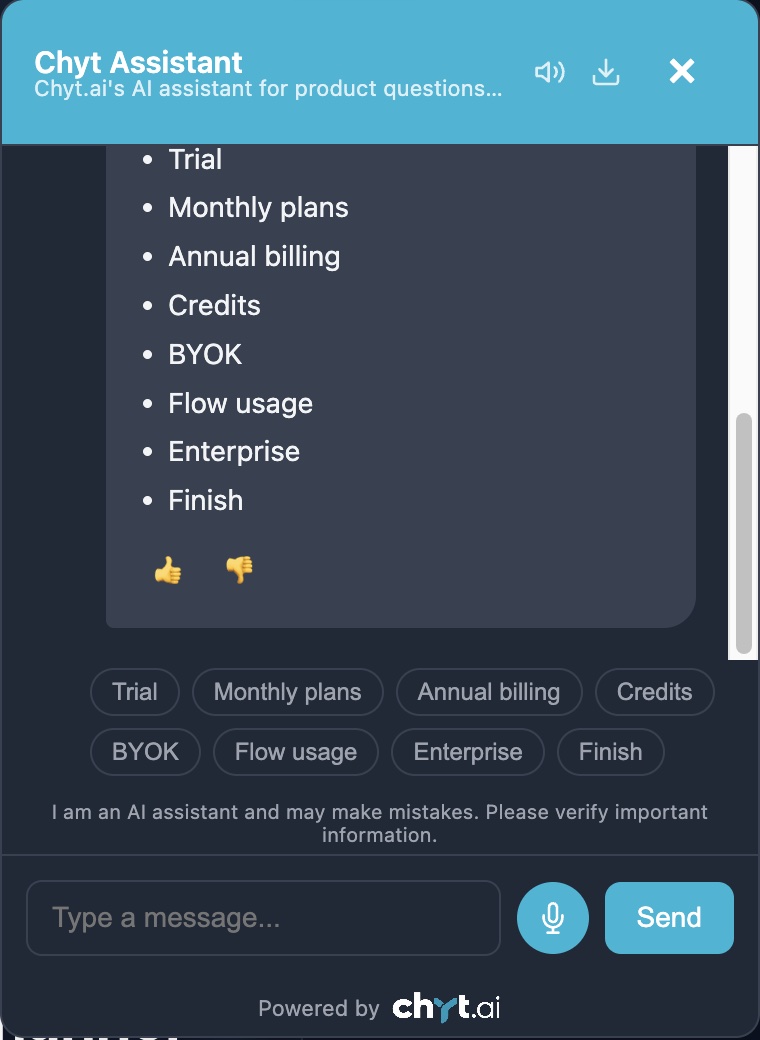
Use buttons wherever the answers are known. They are faster on mobile, remove typos and make branching reliable. In Chyt.ai, an unknown reply to a closed buttons question repeats the question, which keeps the visitor on the path.
Use free text for names, descriptions and anything you cannot list. If you plan to branch on a number with greater than or less than, ask for digits explicitly: an answer such as "about ten" is text, so a numeric condition will be false.
Design tips for flows people actually finish
- Open with value, not a form. Say what the visitor will get and how long it takes.
- Ask one thing per message. Combined questions produce answers you cannot route on.
- Keep the path short. If you will not use an answer, do not ask for it.
- Offer a way out. A "Something else" button that leads to an AI answer or a person prevents dead ends.
- Write like a person. Short sentences, no internal jargon, and confirm what happens next.
- Name things clearly. Descriptive flow names and variable names make later edits safer, and flow names are visible to visitors who type /flows.
Common mistakes to avoid
- Unconnected branches. A flow that stops early nearly always has a button or condition outcome with no destination.
- Misspelt variables. A blank value in a message usually means the name inside the curly brackets does not match the stored variable.
- Testing an old version. Edits close the previous test. Save, then restart the test.
- Saving details without asking. Add a clear consent choice before the Save lead action.
- Assuming the test proves everything. The simulator does not send a real handoff, generate a real AI answer or create a real lead.
- Scripting what AI does better. Do not build a fifty-branch tree for FAQs that your website already answers.
Where does an AI fallback fit?
A flow is the right tool for the structured part of a conversation. For open questions, place a RAG node on the relevant route, for example behind a "I have a different question" button or after the final qualification step. From that node onwards, replies are generated from your knowledge sources, with citations, and use the workspace's AI credits. Everything before it remains deterministic and unmetered.
This split gives you approved wording where it matters and broad coverage where it does not. The guided flows use case shows how teams apply the pattern, and chatbot lead generation applies it to sales qualification.
Next steps
Create a free Chyt.ai account to build your first flow during the trial, then keep the help guide on building, testing and activating a conversation flow open while you work. For node-by-node detail, see the reference on flow nodes, variables and branches.
Frequently asked questions
- Can I build a chatbot flow without coding?
- Yes. A visual flow builder lets you create a guided chatbot by adding nodes to a canvas and connecting them. In Chyt.ai you add Message, Question, Condition, Action, RAG, Handoff and End nodes, store answers in variables, connect each button to its next step, then test and activate the flow. No programming is required.
- What is a decision tree chatbot?
- A decision tree chatbot is a chatbot that moves visitors through a branching set of predefined questions and replies. Each answer selects the next branch, so the same answers always lead to the same outcome. It is another name for a flow-based or deterministic chatbot, and in Chyt.ai it is built with the visual flow builder.
- Which nodes does the Chyt.ai flow builder include?
- The Chyt.ai flow builder includes Start, Message, Question, Condition, Action, RAG, Handoff and End nodes. Question nodes store answers in variables, Condition nodes branch on those variables, Action nodes can set variables or save a lead, RAG nodes hand the conversation to an AI answer, and Handoff nodes request a human.
- Can the AI build a chatbot flow for me?
- Chyt.ai includes an AI Wizard that drafts a flow from a plain-language description. The draft is created inactive, so you review its questions and connections, test it, and activate it yourself. Generating the draft uses AI, but once the flow is running, its fixed steps do not.
- Do flow-based conversations use AI credits in Chyt.ai?
- No. In Chyt.ai, messages handled entirely by flow nodes use no model tokens and no AI credits, and every active plan includes unlimited deterministic flow conversations. AI credits are used only when a route reaches a RAG node or another AI feature.
- Can I run more than one flow on the same chatbot?
- Yes. In Chyt.ai several flows can be active on one chatbot at the same time, and activating one does not deactivate the others. Visitors can choose a path, type /flows to view or switch paths, or ask an ordinary AI question instead.
See it with your own content
Build a demo chatbot from your website or files in a few minutes, or start a free trial and design your first flow.