Build, test, and activate a conversation flow
Create a guided conversation from scratch, a template, or the AI Wizard, then test every branch before activation.
On this page
Before you begin
Create a chatbot and open it from Chatbots. Decide what the visitor should accomplish, which answers you need, and where the conversation should end or reach your team. Use fictional details while testing.
Every active plan includes unlimited deterministic flow conversations. Messages handled entirely by configured flow nodes use no AI credits. A RAG node explicitly hands the conversation to AI and uses the workspace's AI allowance. Trial expiry, visitor safeguards, resource limits, and separate voice allowances still apply.
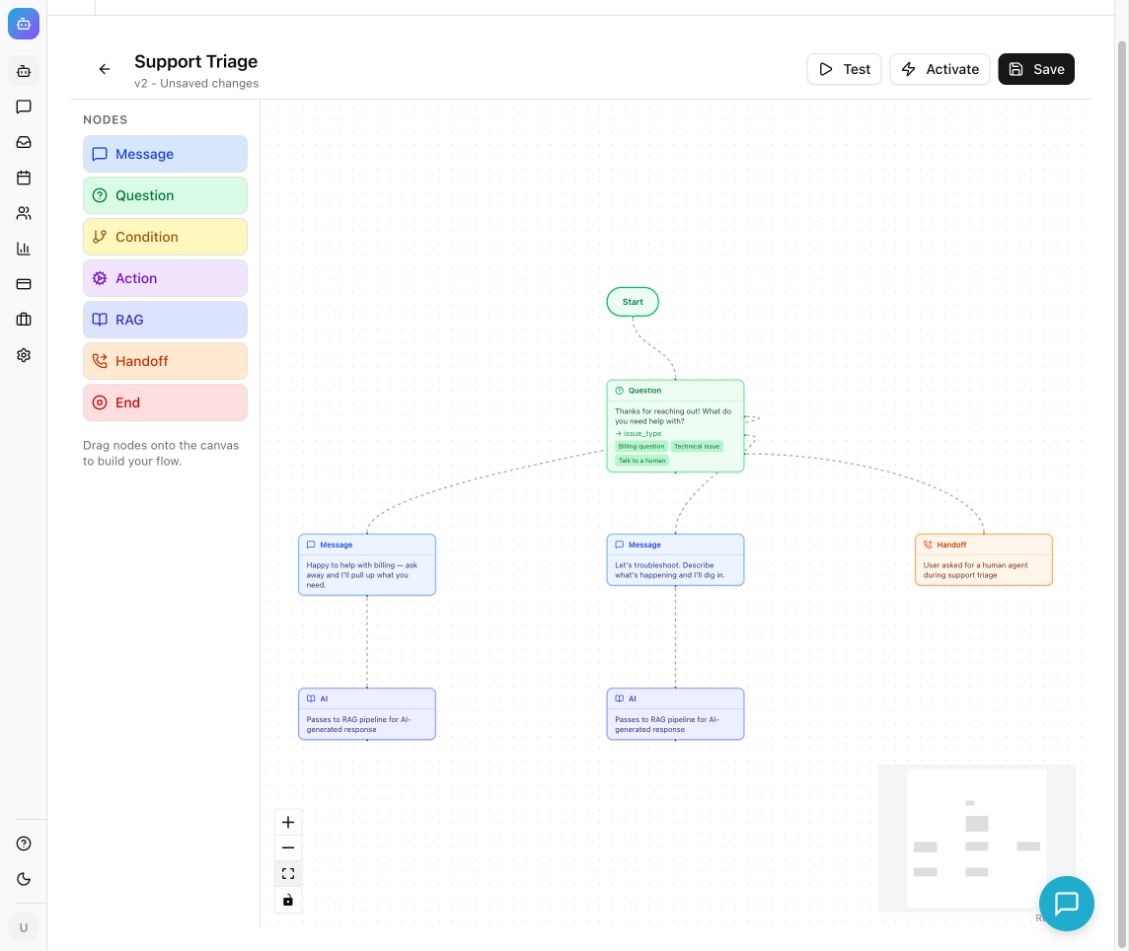
Example from the Chyt.ai dashboard (September 2026).
Create your first flow
- Open the chatbot's Flows tab. Select New Flow, enter a Name and optional Description, and select Create. Use a name such as “Sales enquiry.”
- Alternatively, select From Template and choose a starting point. To describe a flow in natural language, select AI Wizard, fill in What should this flow do?, and select Generate Flow. AI generation creates an inactive draft and uses AI. Inspect its questions and connections before activating; fixed runtime steps do not use AI.
- Click Message in Nodes to add it, or drag it onto the canvas. Enter a welcome message in Message. Use Edit node to select Start, then choose the message in Connections → Default / next.
- Click Question to add it and connect the welcome message to it. Enter “What can we help with?”, set Store in variable to
enquiry_type, choose Buttons, and enter one choice per line in Choices (one per line). For a free-text question, optional Quick replies such asSkipdo not prevent other answers. - Add the next question or message for each option. Select the question with Edit node, then choose each option's destination in Connections. Canvas handles remain available. Use Default / next for a common free-text path.
- Add End to each finished path and write a clear closing message. Where appropriate, add Handoff for human assistance or RAG for an AI answer from the chatbot's knowledge.
- Select Save and then Test, or choose Save and test when edits are pending. The test starts only after the current graph saves successfully. Read any validation error and fix the graph before continuing.
- In Test Flow, complete the questions. Use Restart flow test to test each choice, unexpected input, and every ending. Save and restart after changing a node.
- Select Activate after reviewing the saved flow. Open a fresh chatbot preview or public conversation and confirm the visitor experience.
What you should see
The flow shows Active and a version number. Visitors receive the connected questions in order, and stored variables can appear in later messages as {{enquiry_type}}.
Several flows can remain active for the same chatbot; activating one leaves the others active. One active flow starts automatically for a new conversation. With several active flows, visitors can choose a path or ask an ordinary AI question. Type /flows to view or switch paths, or use a flow name as a starter question. Deterministic choices appear as clickable buttons independently of AI follow-up suggestions.
If something goes wrong
- The test shows an old question: use Save and test after your edits. Editing the graph closes the prior test; a failed save must be resolved before testing.
- The flow stops early: check for a missing connection and ensure every branch has a useful destination.
- The test says “Would fall back to RAG pipeline”: this is a preview marker. Test the actual AI answer separately in the chatbot preview with ready sources and available credits.
- The test says “Would escalate to human agent”: configure Handoff and test a real conversation with the inbox open.
- The live bot uses a different flow: check the active flow names and use
/flowsto select the intended path.
Continue learning
Understand nodes and routing · Set up human handoff · Understand AI credits