Channels
WhatsApp Business chatbot: a practical setup guide
How to set up a WhatsApp Business chatbot on the Meta Cloud API: what you need, how the connection works, contact capture, human handoff and good practice.
On this page
A WhatsApp Business chatbot is software that answers customer messages sent to your business's WhatsApp number. It connects through Meta's WhatsApp Business Platform — the Cloud API — rather than through the WhatsApp Business app on a phone. To set one up you need a Meta business portfolio, a Meta developer app, a dedicated phone number, and a chatbot that knows your business.
This guide explains the pieces, the setup at a level you can plan around, and what good practice looks like once customers start messaging. For click-by-click instructions with screenshots, use the Connect a WhatsApp Business number help guide.
WhatsApp Business app vs WhatsApp Business Platform: what is the difference?
The two are often confused, and the difference decides whether you can run a chatbot at all.
| WhatsApp Business app | WhatsApp Business Platform (Cloud API) | |
|---|---|---|
| What it is | A phone app for a small business | An API hosted by Meta that software connects to |
| Who replies | A person typing on the phone | Your chatbot, your team's inbox, or both |
| Interface | The app itself | None of its own: you use a connected product |
| Suited to | Low volumes handled by hand | Automated answers, guided menus and team workflows |
A chatbot that answers from your own content, captures leads and hands over to a team needs the Platform. Chyt.ai connects to the Meta Cloud API directly, and you connect your own number, so the number, the Meta account and the customer relationship stay yours.
What do you need before you start?
- A Meta business portfolio and a Meta developer account. The Meta app you create is attached to your business portfolio.
- A phone number that is not in use on the WhatsApp app on a phone. Meta verifies it with a code by SMS or call.
- A dedicated Meta app for the chatbot. A Meta app can send its webhooks to only one callback URL, so do not reuse an app whose webhook already serves another system.
- A privacy policy URL and an app category in the Meta app's basic settings. Meta keeps the Publish button disabled until both are present, and an unpublished app receives test webhooks only.
- A Chyt.ai chatbot on a plan that includes the WhatsApp channel. WhatsApp is listed from the Pro plan; channel activation is subject to availability and your provider setup. See pricing.
- A chatbot worth talking to. Build and test the knowledge and flows on the web first.
The help guide notes that Meta's business verification raises messaging limits but is not required to get started. Meta's rules and any charges for conversations your business initiates are set by Meta and change over time, so check Meta's current documentation rather than relying on a blog post, including this one.
How does the setup work?
The help guide estimates about 20 minutes, moving between Meta and Chyt.ai three times. In outline:
- Create or open the Meta app. In Meta for Developers, create an app with the "Connect with customers through WhatsApp" use case, attach your business portfolio, and keep the integration type on "Integrate with API".
- Register the number and copy its Phone Number ID. Add the number under production setup, verify it, and copy the long numeric Phone Number ID — not the phone number itself and not the WhatsApp Business Account ID. Turn on Subscribe webhooks for the business account.
- Create a permanent access token. The temporary token on Meta's test page expires after 24 hours. Create a system user in Meta Business Suite, assign your app and WhatsApp account to it, and generate a token with no expiry and both WhatsApp permissions (messaging and management).
- Copy the app secret. Chyt.ai uses it to verify that each incoming message really comes from Meta.
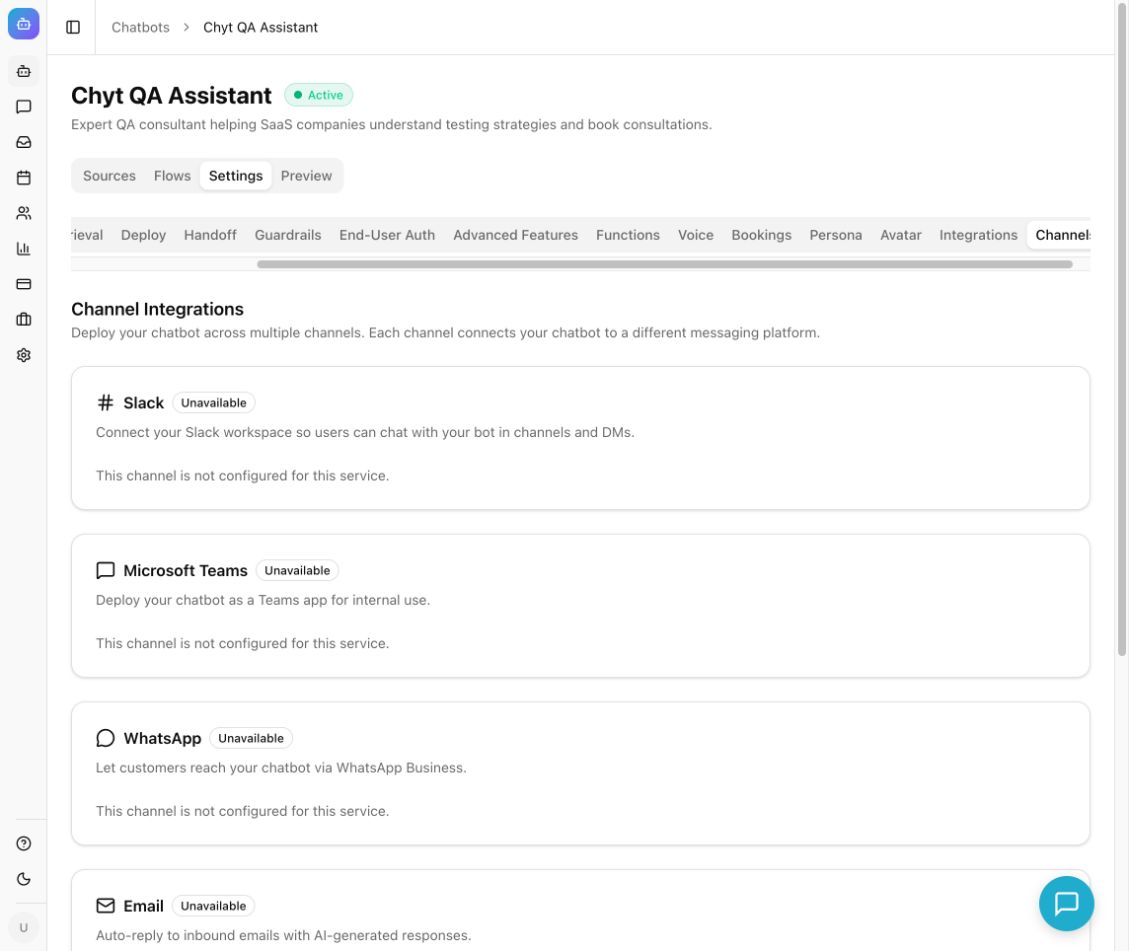
- Connect in Chyt.ai. Open Chatbots → your chatbot → Settings → Channels, find the WhatsApp card, paste the Phone Number ID, Permanent Access Token and Meta App Secret, and select Connect. Chyt.ai verifies the token with Meta and shows Connected with your display number and verified business name.
- Point Meta's webhook at Chyt.ai. The card now shows a Callback URL and Verify token. Paste both into Meta's webhook configuration, subscribe to the messages field, and publish the app.
- Test with a real phone. Send a message to your business number. You should see a read receipt, a typing indicator and the chatbot's reply, and the conversation appears in Conversations with a WhatsApp badge.
Treat the access token and app secret like passwords: they let anyone send messages as your business. Keep them out of screenshots and support emails. One number can answer for one chatbot only.
One chatbot, two channels: how do WhatsApp and the website share knowledge?
You do not build a separate WhatsApp bot. The channel is connected to an existing chatbot, so everything that chatbot already has carries over:
- The same knowledge. Answers are retrieved from the same website crawl, documents and Q&A pairs, grounded in your content. Update a source once and both channels reflect it after the next sync.
- The same guided flows. If the chatbot has active flows, their options arrive on WhatsApp as tappable buttons or a list. The menu always ends with Chat with our AI assistant and Leave a message for our team, so nobody is trapped in a menu. See the flow-based chatbot guide for building flows.
Two differences are worth planning for. Each person gets a set number of AI answers per day on WhatsApp — you choose the number, and the default is 10 — while flow replies, menus and messages left for your team are not counted. And media understanding is not supported yet: if a customer sends a photo or voice note, the chatbot asks them to type the question.
How does contact capture work on WhatsApp?
On a website, a visitor is anonymous until they tell you who they are. On WhatsApp, every conversation starts with a phone number.
- Every new number becomes a lead. The first message from a new number creates a lead in Leads with the phone number recorded from WhatsApp.
- Contact details after the first reply. With "Ask new contacts for their name, company and email" switched on, which is the default, the chatbot asks three short questions after its first answer and saves the replies on the lead. People can reply "skip" to any question and are never asked twice.
- Messages for your team. A message left through the menu is stored on the lead for follow-up.
Answering first and asking second is deliberate. Customers get value before they are asked for anything. A lead appearing in Chyt.ai does not by itself send an email or create a CRM record; follow up through your own process or a configured integration.
How do you hand a WhatsApp conversation to a human?
Some conversations need a person: a complaint, a negotiation, anything the content does not cover. WhatsApp conversations appear in Chyt.ai alongside your other channels, and your team can reply from the Inbox.
- In Settings → Handoff, turn on Enable Handoff and write an honest escalation message and offline message.
- Optionally enable auto-escalation on low confidence, and add a Handoff node to any flow route that should end with a person.
- In the Inbox, an agent finds the conversation under Unassigned, reads the history, selects Claim, replies, and selects Resolve when done.
A handoff request is not a promise of an instant human reply, so say when your team is available.
Good practice for WhatsApp chatbots
WhatsApp is a personal space, and in India in particular it is where many customers already expect to reach a business. That is an advantage only if you respect it.
- Get opt-in. Only message people who have contacted you or clearly asked to hear from you. If you plan to start conversations yourself, read Meta's current business messaging policies first.
- Be clear about identity. Say which business the customer has reached and that an AI assistant is replying. Use a recognisable display name.
- Prefer quick replies. Buttons and lists are faster than typing on a phone and remove ambiguity. Use flows for the common journeys and leave AI answers for open questions.
- Keep messages short. Two or three sentences per reply reads well in a chat bubble; a wall of text does not.
- Always offer a way out. A route to the team, and an honest statement of when the team replies.
- Respect "skip". Do not make contact details a condition of getting an answer.
- Test on a real phone before announcing the number, and again after changing credentials.
Next steps
See how this looks for your business on the WhatsApp chatbot use case page, or try the demo to build the chatbot itself from your website first. When you are ready to connect a number, follow Connect a WhatsApp Business number step by step.
Frequently asked questions
- Can I build a chatbot on the WhatsApp Business app?
- Not a full one. The WhatsApp Business app is a phone app designed for a person replying by hand. A chatbot that answers from your own content, captures leads and hands over to a team connects through Meta's WhatsApp Business Platform, also called the Cloud API. Chyt.ai connects to the Meta Cloud API, and you connect your own number to a chatbot.
- What do I need to set up a WhatsApp Business API chatbot?
- You need a Meta business portfolio and developer account, a dedicated Meta app, a phone number that is not in use on the WhatsApp app on a phone, a permanent access token from a Meta system user, and the app secret. In Chyt.ai you paste the Phone Number ID, permanent access token and app secret into the chatbot's WhatsApp card, then add the callback URL and verify token that Chyt.ai shows to Meta's webhook settings and publish the Meta app.
- Can I use my existing WhatsApp number for the chatbot?
- Chyt.ai's setup guide requires a WhatsApp Business phone number that is not currently in use on the WhatsApp app on a phone. Many businesses register a separate number for the chatbot. In Chyt.ai a connected number can serve one chatbot only, so disconnect it from one chatbot before connecting it to another.
- Does the WhatsApp chatbot use the same knowledge as my website chatbot?
- Yes. In Chyt.ai, WhatsApp is a channel connected to an existing chatbot, so it uses the same knowledge sources and guided flows as the website widget. Flow options appear on WhatsApp as tappable buttons or lists, and AI answers are grounded in the same content. Updating a source updates both channels after the next sync.
- How does a WhatsApp chatbot capture leads?
- In Chyt.ai, the first message from a new WhatsApp number creates a lead with the phone number recorded. By default the chatbot then asks for the person's name, company and email after its first answer, saves the replies on the lead, and lets people reply skip to any question. Messages left for the team are stored on the lead for follow-up.
- How much does a WhatsApp chatbot cost in India?
- With Chyt.ai, the WhatsApp channel is listed from the Pro plan at ₹15,999 per month, or ₹12,799 per month billed annually, excluding taxes, as a flat price that is not charged per message. Meta may apply its own charges for conversations your business initiates; those are set by Meta and billed separately, so check Meta's current pricing.
See it with your own content
Build a demo chatbot from your website or files in a few minutes, or start a free trial and design your first flow.