Use case · Appointment booking
AI appointment booking chatbot with Google Calendar sync
Chyt.ai is an AI appointment booking chatbot: visitors ask for a meeting in plain language, the assistant checks your availability and books a slot without leaving the chat. You set working hours, meeting length, buffers, notice periods and timezone, and can sync bookings to Google Calendar. Every appointment appears in a bookings dashboard where your team confirms, completes or cancels it.
Who it is for: Clinics, consultancies, agencies, salons, coaching and service businesses that take meetings or consultations by appointment
The problem
Booking happens somewhere other than the conversation
A visitor asks a question, gets an answer, and is then sent to a separate scheduling page or asked to call. Each extra step loses people who were ready to book.
Scheduling by message takes several rounds
Suggesting times by email or chat means waiting for replies, checking the calendar again and handling timezone confusion. Staff spend time on coordination rather than on the appointment itself.
Enquiries outside office hours wait until morning
Many people look for a consultation in the evening or at the weekend. If nobody can offer a slot until the next working day, some of them will have booked elsewhere by then.
How Chyt.ai solves it
Availability and booking tools inside the chat
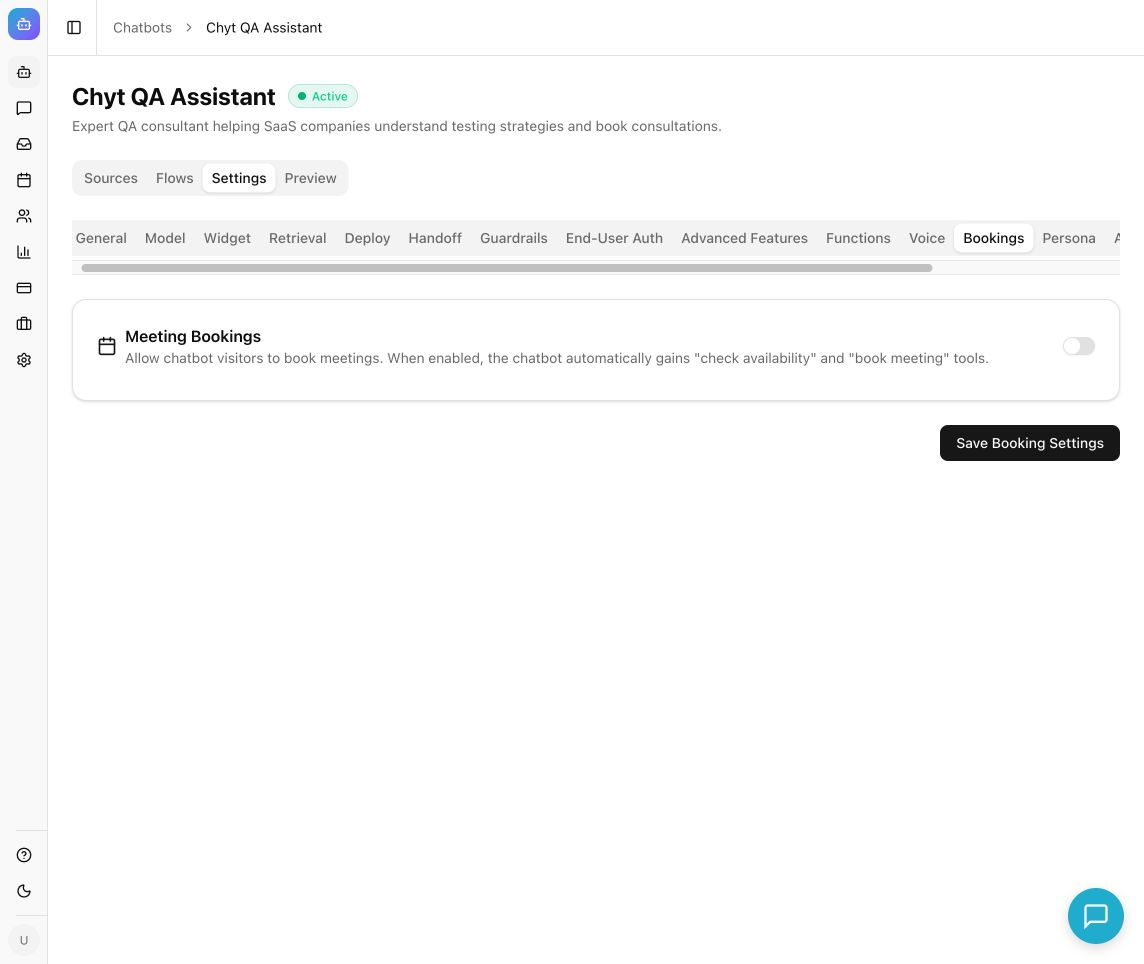
Switch on Meeting Bookings in the chatbot's settings and the assistant gains two tools: check availability and book meeting. Visitors ask for a time in their own words, the assistant offers slots that fit your rules, collects the details you require and saves the booking.
Read the guideYour hours, durations, buffers and notice periods
Enable each working day with start and end times, choose the default meeting duration and the buffer between meetings, and set the minimum notice and how far ahead visitors can book. Pick the timezone carefully, and choose whether an attendee name and email are required.
Read the guideGoogle Calendar sync
Connect a Google account under Integrations, then set Calendar Sync to Google Calendar so bookings create calendar events. A saved booking, a calendar event and a delivered email are separate results, so write a confirmation message that promises only what you have configured and tested.
Read the guideA bookings dashboard for your team
Search and filter appointments by status and chatbot, check the date, duration and attendee, and move each booking through Confirm, Complete or Cancel. Staff can also create a booking by hand for someone who phoned.
Read the guideGuided flows and custom functions around the booking
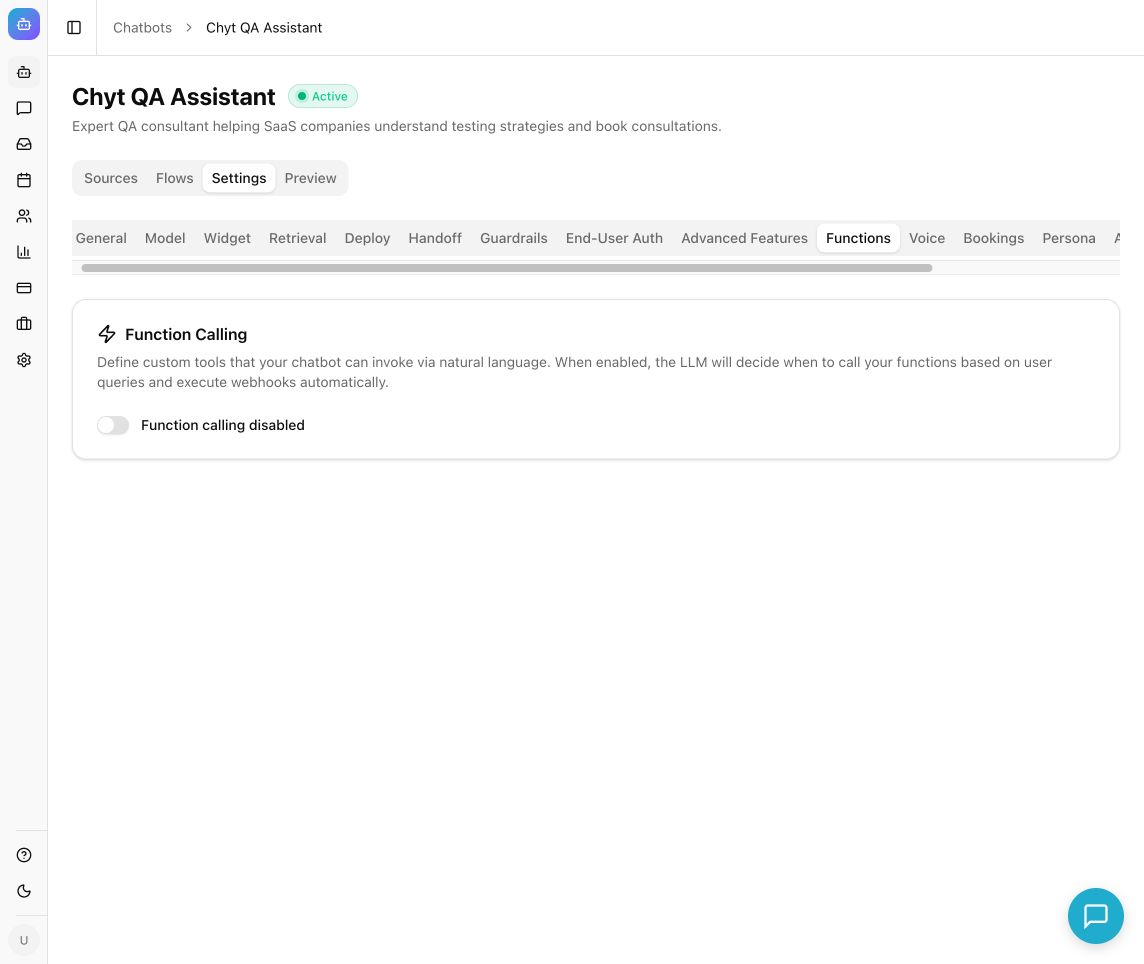
Use a deterministic flow to ask fixed screening questions first, then hand over to the AI path where the booking tools are available. For anything beyond meetings, such as checking a record in your own system, add a webhook function the assistant can call.
Read the guideWhat the conversation looks like
An illustrative example. Your assistant uses your own content, wording and flows.
- Visitor
Do you offer a first consultation, and how long does it take?
- Assistant
Yes. The first consultation is a 30-minute video call where we review your requirements and suggest next steps. Would you like me to find a time?
Answer grounded in your services page, with a citation - Visitor
Yes please, some time on Thursday afternoon.
- Assistant
On Thursday I have 2:00 pm, 3:00 pm and 4:30 pm available, India Standard Time. Which suits you?
The check availability tool applies your working hours, buffer and minimum notice - Visitor
3:00 pm works. My name is Rahul Menon and my email is [email protected].
- Assistant
Thank you, Rahul. Your 30-minute consultation is booked for Thursday at 3:00 pm IST. It is now in our team's bookings list.
The book meeting tool saves the booking in Chyt.ai; it syncs to Google Calendar when calendar sync is connected
Set it up in 5 steps
- 1
Decide your scheduling rules
Agree the appointment timezone, working hours, meeting length, buffer and the attendee details you need before you touch any settings.
- 2
Enable Meeting Bookings and save the rules
Open the chatbot's Settings, go to Bookings, switch on Meeting Bookings, fill in available hours, scheduling options and requirements, write the confirmation message and save.
- 3
Connect Google Calendar if you want synced events
Connect the Google account under Integrations and verify its permissions, then select Google Calendar under Calendar Sync. Skip this step to keep bookings in Chyt.ai only.
- 4
Make a test booking in the preview
Ask to book a meeting, choose a slot, give fictional attendee details and confirm. Check the record in the Bookings dashboard and, if sync is on, the event in the calendar.
- 5
Publish and manage appointments
Deploy the chatbot on your website widget or hosted chat page, then confirm, complete or cancel appointments from the dashboard as they come in.
Inside the product
What it means for the business
Fewer steps between interest and a booked slot
Visitors go from question to confirmed time in one conversation, without a separate scheduling page.
Bookings taken outside office hours
The assistant offers slots at any hour, within the hours and notice periods you set.
Less coordination work for staff
Rules for duration, buffers and advance notice are applied automatically, so your team reviews appointments rather than negotiating them.
One list of appointments with clear statuses
Pending, confirmed, completed and cancelled bookings sit in a single dashboard alongside the chatbot they came from.
Frequently asked questions
- What is an appointment booking chatbot?
- An appointment booking chatbot is a chat assistant that lets people check availability and reserve a time slot in conversation, rather than through a separate form. In Chyt.ai, enabling Meeting Bookings gives the AI assistant check availability and book meeting tools that follow the working hours, duration, buffer and notice rules you set.
- Does Chyt.ai work with Google Calendar?
- Yes. Chyt.ai offers Google Calendar sync for bookings. You connect a Google account under the chatbot's Integrations settings and then choose Google Calendar under Calendar Sync. Selecting the option alone does not connect an account, so make a test booking and confirm the event appears in the calendar.
- Can I use booking without connecting a calendar?
- Yes. With Calendar Sync set to no calendar sync, Chyt.ai still offers slots from your configured working hours and saves each appointment in the Bookings dashboard, where your team can confirm, complete or cancel it.
- Does booking through the chatbot use AI credits?
- Yes. In Chyt.ai, booking runs through AI tools, so it draws on the workspace's AI credit allowance like other AI responses. Deterministic flow steps placed before the booking, such as fixed screening questions, use no AI credits. If an active flow is running, make sure it reaches an AI path where the booking tools are available.
- Will visitors receive an email confirmation?
- Chyt.ai shows the confirmation message you write once the booking is saved. A saved booking, a calendar event and a delivered email are separate results, so promise an email or calendar invitation in that message only after you have configured and tested that delivery.
Try it with your own content
Build a demo assistant from your website or files in minutes. Flat monthly pricing, never per message.
Related use cases
Lead generation
Chyt.ai qualifies website visitors with guided question flows, saves consented leads to a dashboard with stages, and hands ready buyers to your sales team.
ExploreWhatsApp chatbot
Connect your own WhatsApp Business number to Chyt.ai through the Meta Cloud API. One chatbot answers from your content on web and WhatsApp, with team inbox.
ExploreCustomer support
Chyt.ai answers support questions from your help centre, website and documents with citations, and hands over to your team in a live inbox when needed.
ExploreFurther reading
AI appointment booking chatbot: let customers book in chat
How an AI appointment booking chatbot works: availability rules, Google Calendar sync, confirmations and managing bookings, with setup steps and practical tips.
7 min readStrategyChatbot lead generation: qualify and capture leads 24/7
How a lead generation chatbot qualifies visitors with a guided flow, saves leads, verifies contacts, hands hot prospects to your team and books meetings.
6 min readFlows & automationHow to build a flow-based chatbot without code
A step-by-step guide to building a no-code conversation flow: nodes, variables, buttons, conditions, lead capture, testing, activation and AI fallback.
6 min read