Guides
AI appointment booking chatbot: let customers book in chat
How an AI appointment booking chatbot works: availability rules, Google Calendar sync, confirmations and managing bookings, with setup steps and practical tips.
On this page
Most booking journeys lose people between the question and the calendar. A visitor asks whether you handle their problem, gets an answer, and is then sent to a separate scheduling page where they start again. An AI appointment booking chatbot removes that gap: the assistant that answered the question also checks availability and takes the booking, without the visitor leaving the chat.
This guide explains how in-chat booking works in Chyt.ai, which kinds of business it suits, how to set it up, and the checks worth doing before you put it in front of customers.
What is an AI appointment booking chatbot?
An AI appointment booking chatbot is a conversational assistant that can look up open time slots and create an appointment during a chat, as well as answering questions. It differs from a booking form in two ways. It handles the conversation before the booking, such as which service fits, how long a session lasts and what to bring. And it collects the booking details in natural language rather than through a fixed sequence of fields.
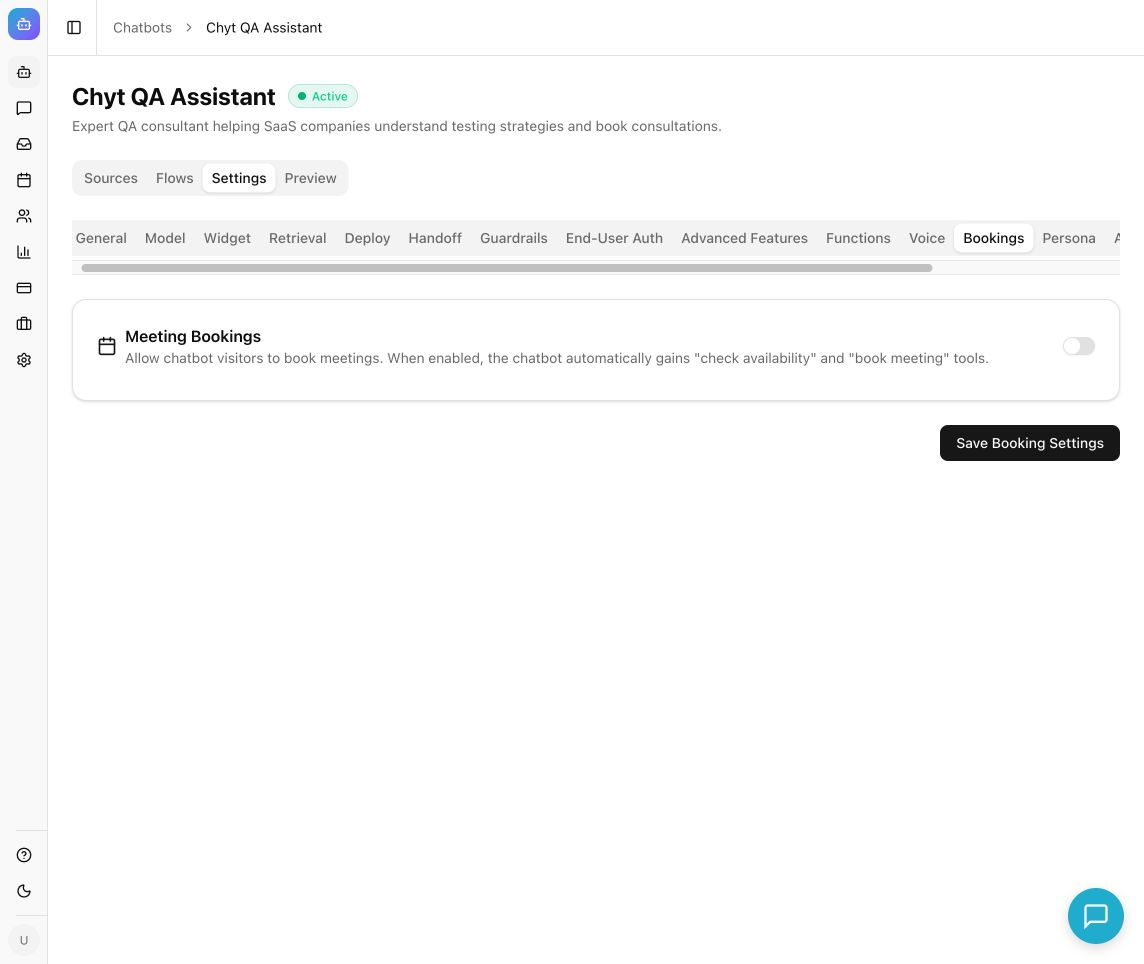
In Chyt.ai, booking is a capability you switch on for a chatbot. Enabling Meeting Bookings gives the chatbot two tools: one to check availability and one to book a meeting. The AI decides when to use them, based on what the visitor asks. The slots it offers come from rules you configure, not from the model's judgement, so the assistant cannot offer a Sunday appointment if Sundays are disabled.
How does in-chat booking work in Chyt.ai?
A typical conversation follows four stages.
- The visitor asks to book. They might say "Can I see someone on Thursday afternoon?" or arrive at the request after a few questions about your services.
- The chatbot checks availability. It uses your working hours, meeting length, buffer, notice period and timezone to find suitable slots, then offers them in the chat.
- The chatbot collects the details you require. You choose whether an email address and an attendee name are mandatory.
- The booking is saved and confirmed. The appointment appears in the Bookings area of your dashboard, and the visitor sees the confirmation message you wrote.
The availability rules you control
| Setting | What it does |
|---|---|
| Available Hours | Enable each working day and set a start and end time. Disabled days are never offered. |
| Default Duration | The length of a standard meeting. |
| Buffer Between Meetings | Gap kept free between consecutive appointments. |
| Max Advance Booking (days) | How far into the future visitors can book. |
| Minimum Notice (hours) | Stops last-minute bookings you cannot prepare for. |
| Timezone | The timezone your slots are calculated in. |
| Requirements | Whether an email address and attendee name must be provided. |
| Confirmation Message | The text the visitor sees once the booking is made. |
Google Calendar sync
Calendar sync is optional. You can run bookings with No calendar sync and work from the Chyt.ai dashboard alone, or choose Google Calendar so that bookings also create events in a Google account.
One detail matters here: selecting the Google Calendar option does not by itself connect an account. You first connect Google Calendar under the chatbot's Settings → Integrations, complete the Google authorisation, and check the permissions. Only then does the sync setting have an account to write to. The integrations, functions and API guide covers the connection steps.
Managing appointments in the dashboard
Every booking lands in Bookings, where your team can search, filter by status or chatbot, and review the date, duration, attendee and originating chatbot. A pending booking can be marked Confirm when you accept it. A confirmed booking can be marked Complete after the meeting or Cancel if it will not take place. When an appointment has a calendar link, open it and confirm the external event is really there.
Staff can also add a booking by hand, for example after a phone call, by choosing the chatbot and entering the date and time, title, attendee name, attendee email and duration. That keeps chat-made and staff-made appointments in one list.
Which businesses benefit most?
In-chat booking suits any business where a conversation naturally ends in "let's fix a time". The examples below are illustrations of fit, not customer stories.
- Clinics and wellness practices. Visitors often have questions about services, timings or preparation before they commit. The chatbot answers from your published content and then offers slots. Keep the assistant to administrative and informational questions; it should not give medical advice.
- Salons and studios. Questions about services, duration and pricing lead directly to a booking request, often outside opening hours.
- Consultants, advisers and agencies. A discovery call is the main conversion. Pair booking with chatbot lead generation so that visitors who are not ready to fix a time can still leave their details for follow-up.
- Service businesses. Home services, repairs, training providers and similar teams can use a minimum notice period and buffers to keep the diary realistic.
- B2B sales teams. Demo requests can be booked at the moment of interest rather than after an email exchange.
The common thread is a small team whose time is better spent in the appointment than arranging it. For a fuller walk-through of the scenario, see the appointment booking use case.
How do you set up an appointment booking chatbot?
Before you start, decide your appointment timezone, working hours, meeting length and which attendee details you need.
- Create a chatbot and give it knowledge. Add your website, documents or Q&A pairs so the assistant can answer pre-booking questions. If you are starting from scratch, follow how to turn your website into an AI chatbot.
- Enable bookings. Open Chatbots → your chatbot → Settings → Bookings and switch on Meeting Bookings.
- Set Available Hours. Enable each working day and set start and end times. Disable the days you do not take appointments.
- Choose scheduling options. Set Default Duration, Buffer Between Meetings, Max Advance Booking (days) and Minimum Notice (hours).
- Select the timezone. Check it carefully, especially if your team and your visitors are in different countries.
- Set requirements and the confirmation message. Decide whether email and name are required, and write a confirmation that matches what your connected services actually deliver.
- Choose Calendar Sync. Pick No calendar sync or Google Calendar. For Google, connect the account under Settings → Integrations first.
- Save and test. Select Save Booking Settings, open the chatbot preview, ask to book a meeting, supply fictional test details and confirm one booking. Then check that the record appears in Bookings, and in your calendar if sync is on.
The help guide linked under Next steps has the full reference, including troubleshooting.
Tips for reliable in-chat booking
Only promise what you have tested. A saved Chyt.ai booking, a calendar event and a delivered email are three separate results. If your confirmation message says "you will receive an email", make sure an email really is configured and arrives. If it is not, change the wording.
Treat the timezone as a first-class setting. Most "wrong time" reports come from a mismatch between the configured timezone, the visitor's browser and the calendar. Test with a colleague in another timezone if you serve more than one region.
Use notice and buffers to protect the diary. A minimum notice of a few hours and a short buffer prevent back-to-back or surprise appointments. If visitors report "no slots available", these same settings, together with enabled days, duration and the advance-booking window, are the first things to check.
Mind how flows and AI interact. Booking tools are used by the AI. If you run a deterministic flow on the same chatbot, make sure the flow reaches an AI-enabled path, such as a RAG node, where booking should be offered. Because booking relies on AI tool use, those messages draw on your workspace's AI credits like any other AI response.
Ask only for what you need. Requiring a name and email is usually enough. Every additional question before the slot is confirmed is a chance for the visitor to leave.
Review the list regularly. Confirm pending bookings promptly, mark meetings complete, and cancel those that will not happen so the dashboard reflects reality.
What in-chat booking does not do
It is worth being precise. The booking settings described here cover availability, required details, a confirmation message, optional Google Calendar sync and dashboard management. They do not, by themselves, take payments or deposits, and you should not tell customers to expect notifications that you have not configured and tested. If you need to push booking data into another system, custom webhook functions are the supported route; the flow builder's "API call" action is marked as coming soon and is not available.
Next steps
Try the experience as a visitor first with the live demo, which builds a chatbot from your own website. When you are ready to configure availability and test a real booking, start a free trial workspace and follow the help guide on configuring and managing bookings step by step.
Frequently asked questions
- What is an AI appointment booking chatbot?
- An AI appointment booking chatbot is a conversational assistant that answers questions and also checks availability and creates appointments inside the chat. In Chyt.ai, enabling Meeting Bookings on a chatbot gives it tools to check availability and book a meeting, using working hours and scheduling rules you define.
- Can a Chyt.ai chatbot book appointments into Google Calendar?
- Yes, when Google Calendar is connected. In Chyt.ai you first connect a Google account under the chatbot's Settings → Integrations, then set Calendar Sync to Google Calendar in the booking settings. Selecting the calendar option alone does not connect an account, and bookings also work with no calendar sync.
- How does the chatbot know which time slots to offer?
- Chyt.ai calculates slots from the rules you configure: enabled working days and hours, default meeting duration, buffer between meetings, maximum advance booking in days, minimum notice in hours, and your timezone. The AI decides when to offer booking, but it can only offer slots that fit those rules.
- Where do I see and manage appointments made through the chatbot?
- All appointments appear in the Bookings area of the Chyt.ai dashboard. You can search, filter by status or chatbot, confirm pending bookings, mark confirmed bookings as complete or cancelled, and create a booking manually with a date, title, attendee name, attendee email and duration.
- Does booking through the chatbot use AI credits?
- Yes. In Chyt.ai the booking tools are invoked by the AI, so those messages use the workspace's shared AI credits like other AI responses. Messages handled entirely by deterministic flow nodes use no AI credits, but a flow must reach an AI-enabled path for booking to be offered.
- Why does my booking chatbot say there are no slots available?
- In Chyt.ai this usually comes from the availability rules. Check that the right days are enabled, the timezone is correct, and that the meeting duration, buffer, minimum notice and advance-booking window still leave room for a slot. Adjust the settings, save, and test again in the chatbot preview.
See it with your own content
Build a demo chatbot from your website or files in a few minutes, or start a free trial and design your first flow.