Troubleshoot setup, sources, and chatbot responses
Follow a focused checklist for missing widgets, failed imports, incorrect answers, model errors, and visitor limits.
On this page
Start with the first point in the workflow that is failing: workspace access, source ingestion, Preview, or the published visitor experience. This separates a knowledge problem from a deployment or account problem.
Before you begin
Note the workspace, chatbot name, affected page, time of the problem, and exact displayed error. Keep a short example question and the response you expected. Do not include passwords, API keys, access tokens, or private visitor information when sharing troubleshooting details.
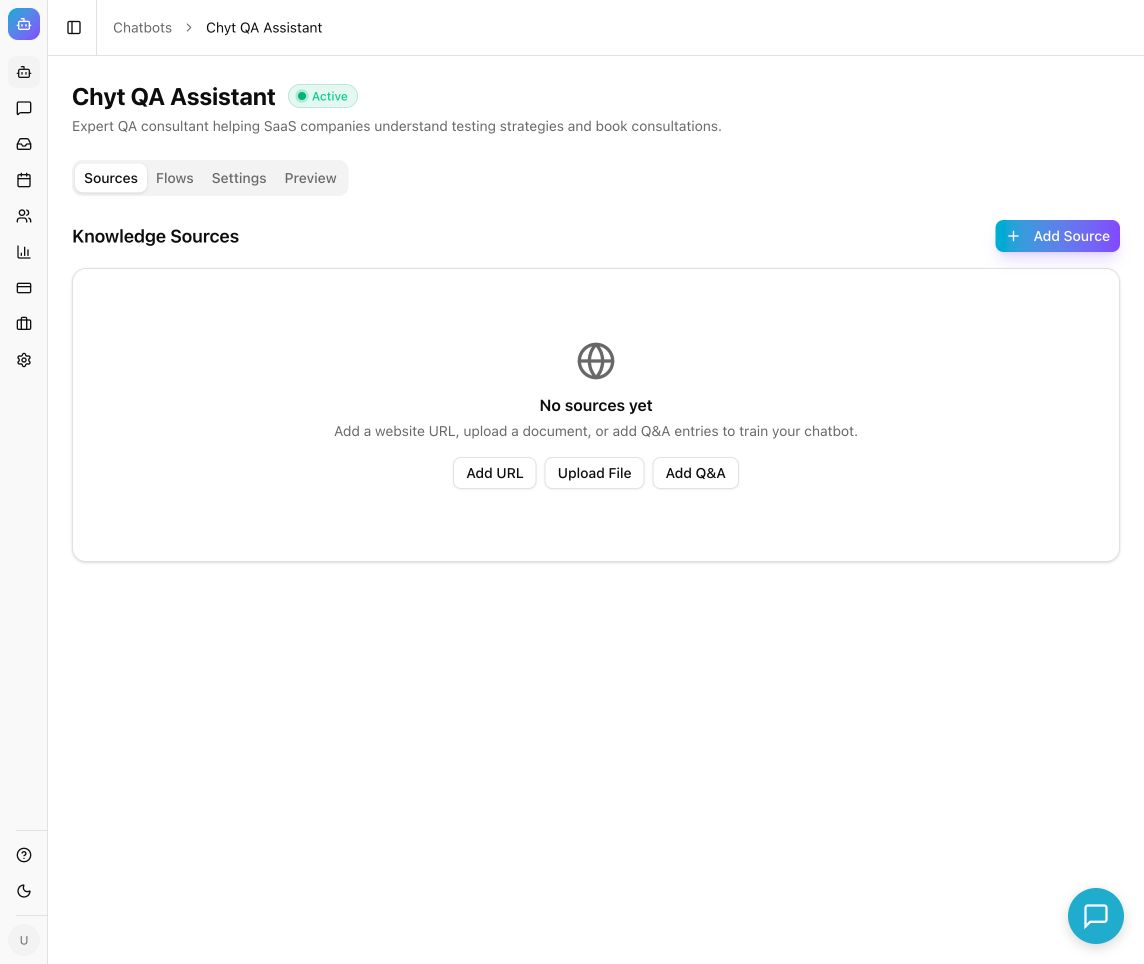
Example from the Chyt.ai dashboard (September 2026).
Step 1: Confirm the workspace and chatbot
- Check the workspace selector and browser address.
- Open Chatbots and choose the intended chatbot.
- If it is missing, check your other workspace memberships and the account you signed in with.
- If sign-in fails, use Sign in and workspace access.
A workspace change can explain a different chatbot list, model balance, or source collection.
Step 2: Check the knowledge
- Open Sources.
- If the list failed to load, use Retry.
- For a source in Pending, Crawling, or Processing, wait for completion before judging its answers.
- For Error, read the source's displayed message and expand Sync history.
- Resolve the cause, then use Re-sync when available.
- For a Ready source, confirm its content counts and ask a question about a fact it contains.
For a website, check public access, URL, scope, and excluded paths. For a file, check the supported format and size. For an app import, check provider permissions, token validity, and content sharing. SharePoint and Dropbox do not support automatic sync.
Step 3: Test directly in Preview
- Open Preview and select Clear.
- Send a simple question covered by a Ready source.
- Check the response and available diagnostics for model, sources, token usage, and confidence.
- If Preview also fails, inspect Settings → Model and Billing before changing the website embed.
- If Preview succeeds but the visitor page fails, continue to deployment checks.
An incorrect answer with relevant sources usually needs clearer knowledge or instructions. An answer with missing or unrelated sources needs a retrieval review.
Step 4: Check AI access and allowances
- Open Settings → Model.
- Use Refresh balance & availability, or Retry model catalog if the catalog did not load.
- Resolve any unavailable selected model or tier.
- For BYOK, save the provider credentials before Test saved connection, then test the exact model in Preview.
- Check the displayed plan or trial state and workspace AI allowance in Billing.
AI conversation capacity depends on credits and actual usage; there is no fixed commercial conversation or token quota for the current plans. Deterministic flow conversations without AI can continue when AI credits are exhausted while the plan is active. Trial expiry, visitor safeguards, resource limits, and separate voice allowances still apply. A flow that explicitly falls back to AI requires AI allowance for that fallback.
Step 5: Check the published experience
- Open Settings → Deploy and confirm the chatbot is active.
- Confirm the needed web channel is enabled and select Save Channels after changes.
- Compare the website's installed snippet with the current Embed Code, including its chatbot ID and host.
- For a standalone page, use the exact copied link and review Public Access and End-User Auth.
- Reload the public page and repeat the test.
If a widget is blocked, inspect your site's custom-code placement, script manager, or content security policy. If styling looks stale, confirm Widget → Save Changes completed and reload the actual visitor page.
Understand visitor verification or message limits
A contact-verification prompt can be an expected part of the configured visitor policy. Follow the method offered on the page. Per-conversation and daily visitor limits are separate from plan-wide AI usage; creating a new conversation does not reset a shared daily visitor allowance.
Escalate with a reproducible example
Expected result: you can identify which step fails and either resolve it or provide enough detail for support to reproduce it.
If the issue persists, send your support contact the workspace address, chatbot name or ID, exact error, time and timezone, affected channel, and a minimal non-sensitive test question. State whether Preview works and whether the source is Ready. Include a screenshot of the error with secrets and visitor details removed.
Useful next steps: website ingestion, document upload, model configuration, and deployment.