Sign in, recover access, and switch workspaces
Use email or Google sign-in, choose the correct workspace, recover your password, and create a workspace when permitted.
On this page
A workspace contains its own chatbots, knowledge, settings, and shared allowances. Check the workspace name and address before editing a chatbot or adding sources.
Before you begin
Use the email address associated with your Chyt.ai account or invitation. If your team gave you a workspace address, open that address to sign in directly. Keep Google sign-in and its return to Chyt.ai in the same browser session.
Sign in to your account
- Open Sign in, or your workspace's sign-in page.
- Select Sign in with Google and complete the provider's prompts, or enter Email address and Password and select Continue.
- If your account requires Two-factor authentication, enter the six-digit Login code sent through the method shown on the page, then select Continue.
- If Choose a workspace appears, select the workspace you want to open. Each entry shows its name, address, and your role.
- Wait for the workspace to open and confirm its name in the dashboard.
With one workspace, the main sign-in flow can take you directly to it. With multiple workspaces, selecting one establishes the appropriate workspace session.
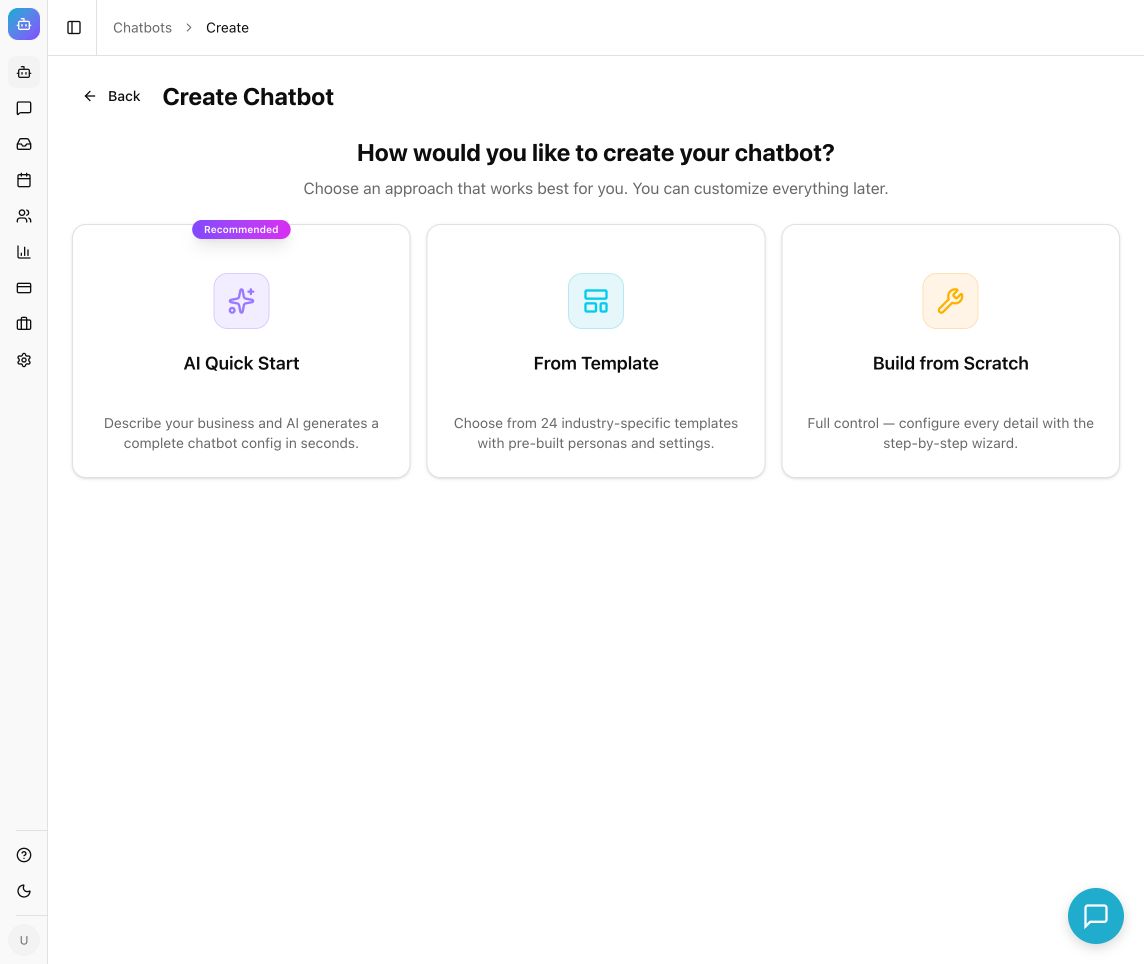
Example from the Chyt.ai dashboard (September 2026).
Switch to another workspace
- Open the workspace selector at the top of the dashboard sidebar.
- Choose one of your listed workspaces.
- Wait for navigation to finish.
- Check the workspace name and chatbot list before making changes.
A chatbot that seems to have disappeared may belong to a different workspace. Switching workspaces does not copy a chatbot or its sources.
Reset an email password
- On the sign-in page, select Forgot password?.
- Enter your account's Email address and submit the reset request.
- Open the reset email and follow its link.
- Enter New Password and Confirm Password. The form requires 8–128 characters, and both entries must match.
- Select Reset Password, then sign in again after the success screen.
The request page gives a neutral confirmation to protect account privacy. A reset link is one-use and can expire. If the page shows Invalid Reset Link, select Request New Link. Do not keep retrying a link that has already been used.
Create another workspace
If the workspace selector offers Create New Workspace and your account is eligible:
- Select Create New Workspace.
- Enter Workspace Name.
- Review Workspace URL. The form suggests a subdomain from the name; you can edit it.
- Wait for the availability check to show Available. The subdomain must have at least three characters.
- Select Create Workspace and confirm you arrive in the new workspace.
Expected result: the dashboard opens in the intended workspace, with the chatbots and access appropriate to your membership.
Troubleshooting
If Google sign-in fails on return, restart it from the intended Chyt.ai workspace in the same browser instead of reusing a callback link. If a workspace is missing, verify which Google account or email you used and ask your workspace administrator to check your membership. If a password reset email does not arrive, check spam and confirm the address before requesting a fresh link.
Continue with Create your first chatbot or the troubleshooting checklist.