Add, crawl, and refresh a website source
Choose a crawl scope, exclude irrelevant pages, schedule updates, and check ingestion and sync history.
On this page
Website sources turn accessible page content into searchable chatbot knowledge. The source is ready for testing after crawling and processing finish.
Before you begin
Open the intended chatbot and identify the public pages that contain the information it should answer from. Use a complete URL beginning with https://. A page that requires a private login or blocks automated access may not be available to the crawler.
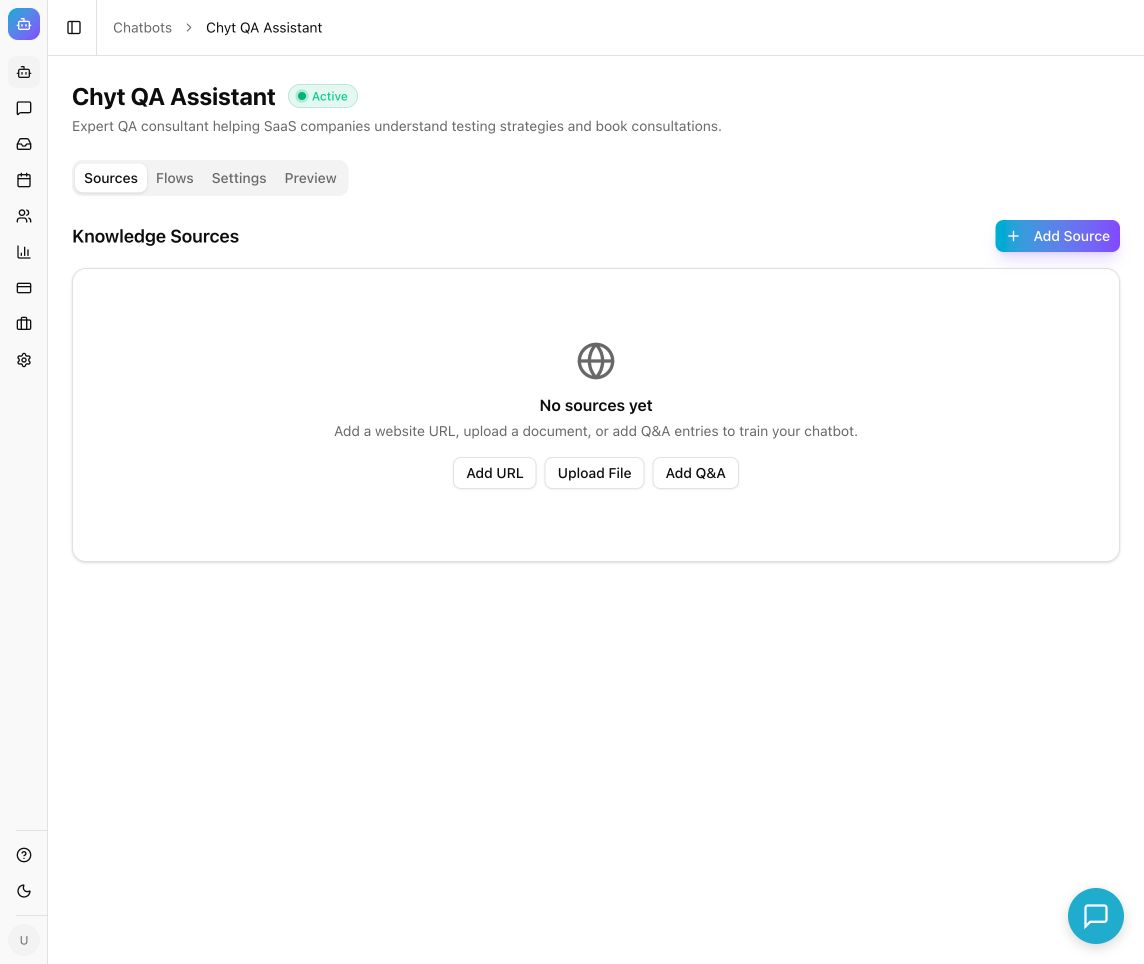
Example from the Chyt.ai dashboard (September 2026).
Add the website
- Open your chatbot's Sources tab.
- Select Add Source → Website URL. In an empty source list, Add URL opens the same dialog.
- Enter Website URL.
- Enter an optional Source name that your team will recognize. If left blank, the hostname is used.
- Set Max pages to crawl to a positive number within the supported range of 1–500. This controls the requested crawl size; your workspace's resource allowance also applies.
- Enable Include subdomains only if content such as blog.example.com or docs.example.com belongs in this knowledge source.
- Add Exclude patterns (comma-separated) for paths that should be omitted, such as /admin/* or /blog/*.
- Select a Sync Schedule: No auto-sync, Daily, Weekly, or Monthly.
- Select Add source.
Choose a small initial crawl scope when you are learning how your site's content is extracted. Excluding unrelated material can improve both relevance and maintenance.
Verify the import
- Watch the source card move through Pending, Crawling, and Processing to Ready.
- Check the displayed page and chunk counts. A chunk is a searchable piece of the imported text.
- Open Preview and ask a question whose answer is clearly stated on the website.
- Inspect the response's sources when provided, and compare the answer with the original page.
Expected result: the source is Ready with useful indexed content, and relevant visitor questions can retrieve it. “Ready” confirms processing completed; it does not mean every possible page on the domain was imported.
Refresh changing content
- Update the original website.
- Return to Sources and select the source's Re-sync action when it is not already processing.
- Open Sync history to review recent runs, status, pages, changes, duration, and any error.
- For website sources, use the schedule selector on the source card to change the automatic refresh frequency.
- Test a question about the changed information after the new run finishes.
Sync history can show the next scheduled run when available. Scheduled updates are periodic; edits to your website are not guaranteed to appear in chatbot answers immediately.
Troubleshooting
If the source reports an error, read the source card and Last error in sync history before retrying. Verify the URL opens without signing in, the crawl scope includes the page, and exclusion patterns are not too broad. If few pages were indexed, check whether the content is accessible as page text or primarily behind navigation, scripts, or access controls.
For missing facts, add a focused Q&A entry or a document source. For content that is present but poorly matched, follow Improve retrieval and answer quality.
Deleting a source removes it from future retrieval. Confirm that another maintained source covers any information visitors still need before removing it.