Improve retrieval and answer quality
Diagnose missing or irrelevant answers, tune knowledge search, and use Preview diagnostics to verify improvements.
On this page
Retrieval selects the parts of your knowledge that an AI response can use. Improve the source content first, then adjust retrieval one setting at a time so you can tell what helped.
Before you begin
Check that the relevant source is Ready and contains the correct current information. Prepare a small test set: direct factual questions, paraphrases, questions with similar keywords but different meanings, and questions that are not covered by the knowledge.
Record each question and the answer you expect. This gives you a repeatable comparison before and after changes.
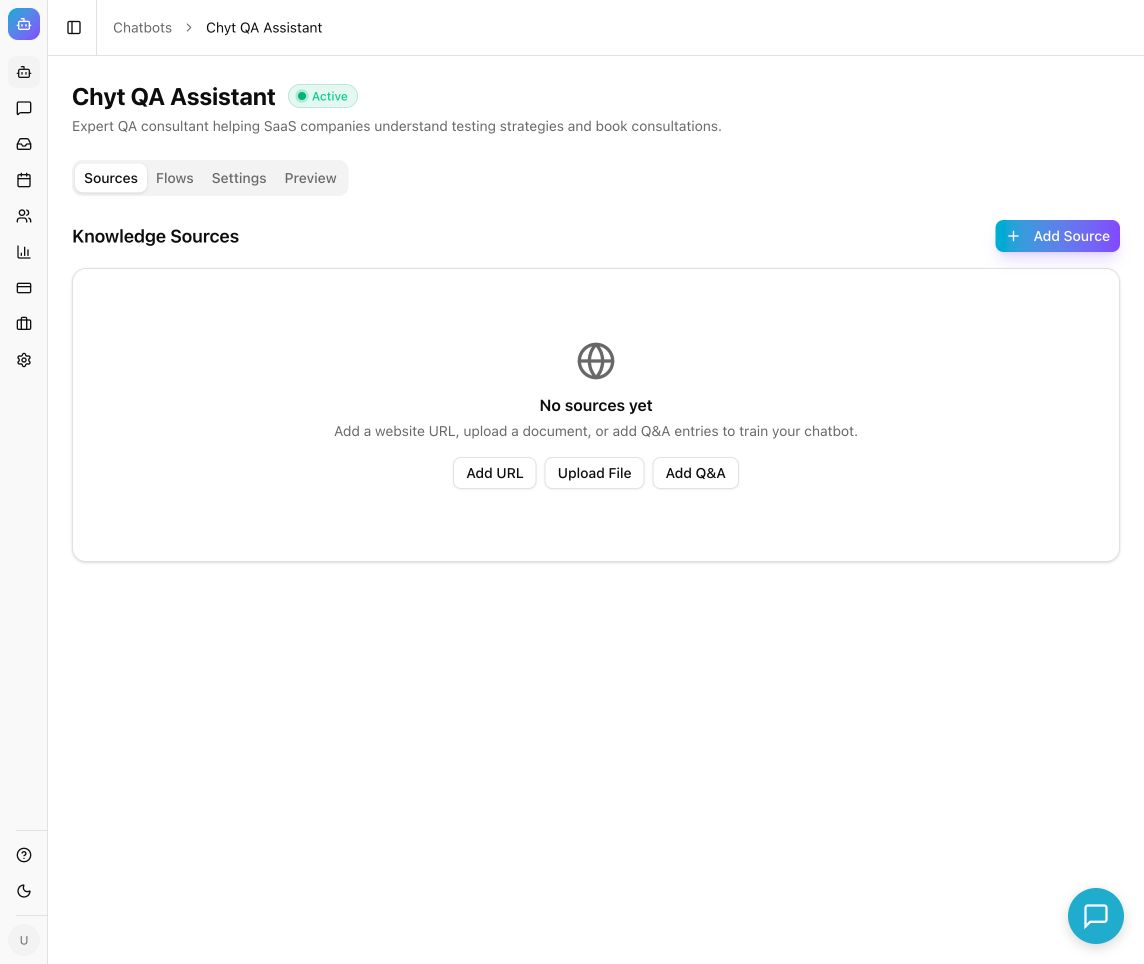
Example from the Chyt.ai dashboard (September 2026).
Diagnose the answer in Preview
- Open the chatbot's Preview tab.
- Use Clear to start a fresh test when comparing configurations.
- Send one test question.
- Inspect the answer and its sources.
- Review the diagnostic panel for Confidence, Model, Token Usage, and Sources when those values are available.
- Compare the selected sources with the information required to answer.
If the required fact was never imported, changing the model or search settings cannot supply it reliably. Add or correct the source first.
Tune retrieval
- Open Settings → Retrieval.
- Review Top K Results. It controls how many document chunks are retrieved for a query. Increasing it can provide broader context, while reducing it can remove distracting material.
- Review Similarity Threshold. A higher setting requires a closer match; a lower setting can admit more loosely related material.
- Review Cross-Encoder Reranking. When the configured reranking service is available, it reorders retrieved results to improve relevance, with some extra latency.
- Change one setting and select Save Changes.
- Return to Preview and repeat the same test questions.
- Keep the change only if the overall result improves.
Do not treat a higher threshold as automatically better. A threshold that is too strict can leave a useful question without supporting context.
Understand chunk size
Chunk Size (tokens) controls how text is split for new ingestions. Changing it does not automatically re-split existing chunks.
If you need to evaluate a different chunk size:
- Save the chosen size in Settings → Retrieval.
- Run a fresh ingestion of the affected source using its supported import or re-sync workflow.
- Wait for Ready.
- Retest the same questions.
Larger chunks can preserve surrounding explanation; smaller chunks can isolate focused facts. Prefer clear document structure over trying to compensate for a confusing source with extreme settings.
Fix common quality problems
| Symptom | Start with |
|---|---|
| An answer omits an important policy condition | Add the condition beside the relevant fact in the source or a focused Q&A answer. |
| The answer combines old and new policies | Remove or replace obsolete, conflicting sources. |
| The correct page is never retrieved | Check ingestion, crawl scope, exclusions, and source status before tuning search. |
| Many unrelated sources appear | Narrow the knowledge set and compare threshold or Top K adjustments. |
| The sources are right but the answer is vague | Improve the system prompt, persona, or response model. |
| Answers stop early | Review Maximum response tokens in Model settings. |
Expected result: the test set consistently retrieves relevant supporting content, and generated answers reflect it without filling gaps with invented facts.
Troubleshooting
If a source remains in Error, resolve ingestion before tuning retrieval. If model or credit availability prevents a response, address it in Settings → Model or Billing. A confidence value or citation is a diagnostic aid; verify important answers against the underlying source.
Continue with Q&A training, model configuration, or the troubleshooting checklist.