Train answers with Q&A knowledge sources
Add approved question-and-answer pairs, test different wording, and keep policy answers current.
On this page
Q&A entries give your chatbot a concise source for facts that may be missing from your website or documents. They are especially useful for support policies, product eligibility, service hours, and approved explanations.
Before you begin
Prepare answers you are authorized to publish to this chatbot's audience. Confirm the details with the person who owns the policy. Decide which questions belong together so the source has a meaningful name, such as “Delivery FAQ — September 2026.”
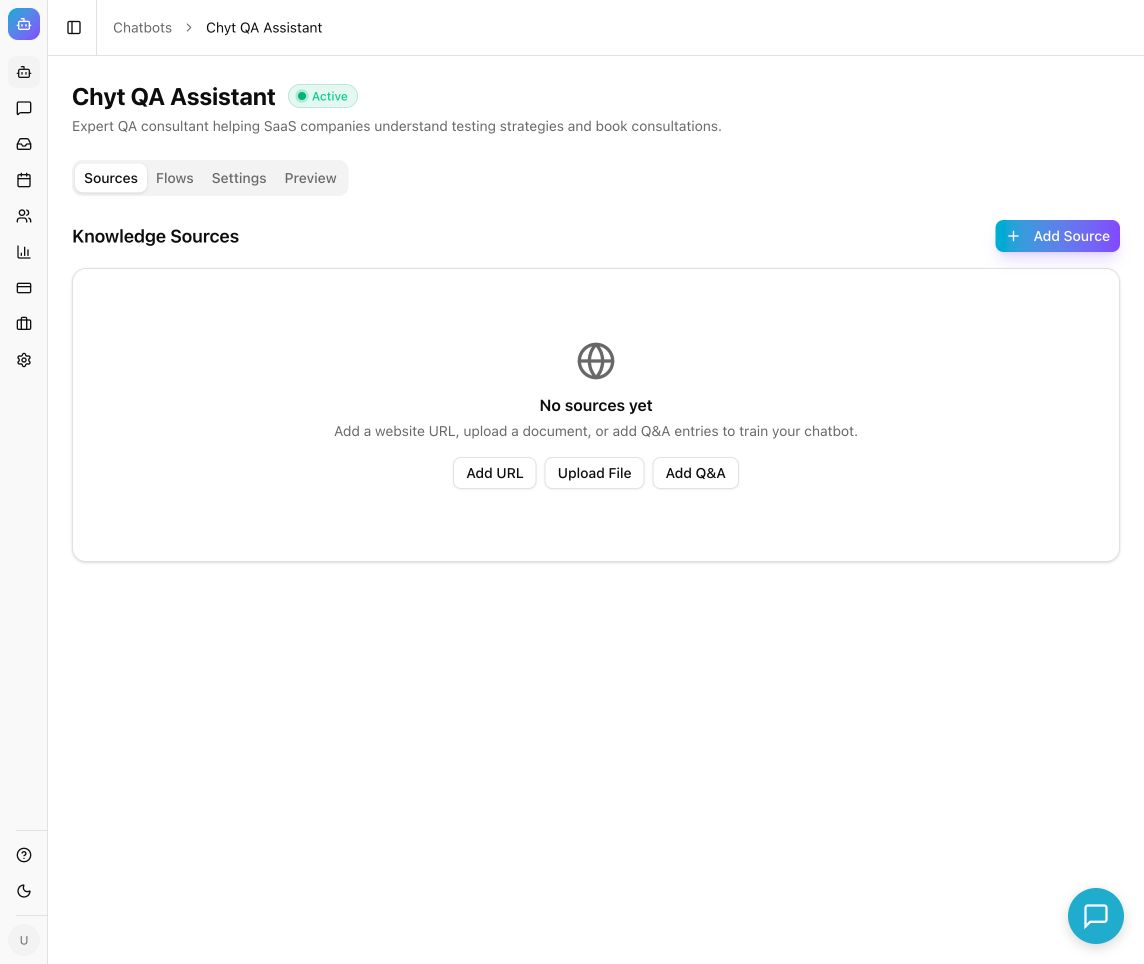
Example from the Chyt.ai dashboard (September 2026).
Add your first Q&A source
- Open the chatbot's Sources tab.
- Select Add Source → Q&A Entries. An empty chatbot also offers Add Q&A.
- In Add Q&A entries, enter Source name.
- Enter the first Question in the language a visitor would use.
- Enter its approved Answer, including relevant conditions and a real contact route if one is needed.
- Select Add Pair for each additional question and answer.
- Remove unwanted pairs using their delete action.
- Select Add … pair(s) to submit the completed pairs.
- Wait for the source to become Ready.
Each submitted pair needs both a question and an answer. Incomplete pairs are not useful training material; complete or remove them before submitting.
Write answers that are useful in context
A question such as “How do returns work?” needs more than “30 days.” State what the period applies to, how to start the request, and any verified exceptions. Prefer complete sentences over answers that depend on reading the question.
For example, use: “For eligible unused items, contact our support team within 30 days of delivery. Include your order number. Our published return policy lists the exceptions.” Replace this example with your actual policy before adding it.
Avoid adding several contradictory versions of the same policy. Put facts in Q&A sources and behavior instructions in Settings → General → System Prompt or Settings → Persona.
Test the knowledge
- Open Preview after ingestion is complete.
- Ask the exact question from the pair.
- Ask a paraphrase that expresses the same need.
- Ask about a relevant exception that the answer covers.
- Ask a question the source does not answer.
- Compare the response and its sources with your approved wording.
Expected result: relevant questions can retrieve the Q&A knowledge and produce a consistent, supported answer. Q&A entries inform AI responses; they do not guarantee that every response repeats the answer verbatim. Use a deterministic flow when a fixed sequence or exact scripted response is required.
Update an answer safely
The source-list screen provides add, re-sync, and delete actions. To replace a Q&A set from that screen:
- Create a new Q&A source containing the revised, approved pairs.
- Wait for Ready and test the changed questions.
- Delete the superseded source once the replacement is checked.
- Retest to confirm the old policy no longer appears in newly generated answers.
Do not use Re-sync as a substitute for supplying revised Q&A text.
Troubleshooting
If the chatbot ignores a pair, confirm the source is Ready and the question and answer are both substantial enough to identify the topic. Check whether another source says something different. If relevant knowledge exists but is not selected, use retrieval settings.
If responses have the right facts but the wrong style, adjust Persona. If they invent missing details, make the source more complete and clarify in the system prompt how the chatbot should handle unknown information.