Upload PDFs, documents, spreadsheets, and text
Prepare readable files, upload them as knowledge, confirm processing, and replace outdated documents.
On this page
Document sources are useful for product guides, policies, FAQs, and structured reference material. Uploading a knowledge source makes its extracted content available for chatbot answers; it is separate from a visitor attaching a file to a conversation.
Before you begin
Have the final file ready and open the chatbot that should use it. In Sources → Upload File, the supported choices are PDF, DOCX, TXT, CSV, and XLSX. The upload dialog limits each file to 50 MB, and your workspace's storage allowance may impose an additional limit.
Use files with readable text and clear headings. For a PDF, check that you can select and copy important text. Do not assume an image-only scan will produce a complete searchable document.
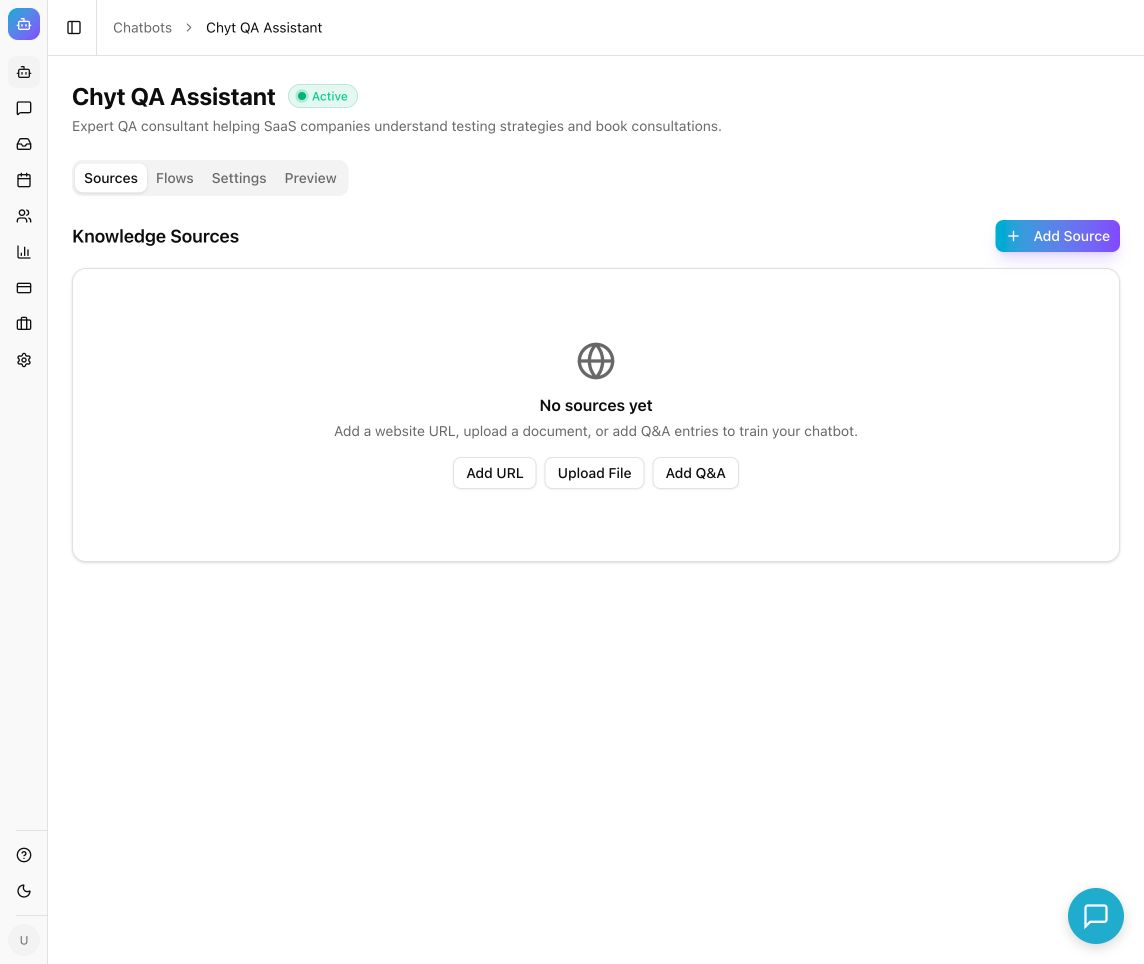
Example from the Chyt.ai dashboard (September 2026).
Upload a knowledge file
- Open the chatbot's Sources tab.
- Select Add Source → Upload File, or Upload File from the empty-state screen.
- In Upload document, drop one file into the upload area or select Drop file here or click to browse.
- Confirm the filename and file size.
- Select Upload and wait for the dialog to close.
- Find the new source under All Sources or Files.
- Wait until the status is Ready before testing answers.
The main upload dialog handles one selected file at a time. Repeat the process for additional documents.
Check that the right knowledge was indexed
- Confirm the source has a useful chunk count.
- Open Preview and ask about a specific section, policy, or item in the document.
- Check the answer and any cited source.
- Ask the same question using a different phrasing.
- Test an exception or missing detail to make sure the assistant does not invent a policy.
Expected result: the document is Ready and the chatbot can use its extracted content for relevant questions. A successful upload alone does not establish extraction quality.
Prepare files for clearer answers
Use descriptive headings and keep related explanations together. Explain abbreviations before using them. In spreadsheets, use clear column names and make rows understandable without relying only on cell color, merged cells, or a visual layout. For tables with important qualifications, include those qualifications as readable text near the table.
Separate unrelated subjects into focused files when practical. Remove obsolete versions or contradictory policies so retrieval does not present competing answers.
Replace an outdated document
- Prepare the revised file with a clear version or date in its name.
- Upload it as a new source.
- Wait for Ready and verify the updated facts in Preview.
- Remove the obsolete source when the replacement has been checked.
- Retest the questions affected by the change.
Re-syncing an uploaded source does not select a revised file from your computer. Upload the replacement explicitly.
Troubleshooting
For an unsupported-file message, use one of the formats listed by the current upload dialog. PowerPoint may be accepted in other import paths, but it is not offered by this dialog; export the relevant content to a supported format for this workflow. If the file exceeds 50 MB, split it into coherent smaller documents.
For a storage-limit error, read the displayed allowance message and check Billing. If processing completes with little useful text, export a text-based version and retry. If the content is indexed but answers miss it, use the retrieval guide or add a focused Q&A source.