Import knowledge from connected apps and APIs
Configure Notion, Confluence, Jira, Google Drive, SharePoint, Dropbox, Gitbook, YouTube, or a REST API with the right scope and refresh behavior.
On this page
Use Sources → Add Source to import knowledge from another service. A connector appearing in the menu means a setup path exists; successful use also depends on provider configuration, your account's permissions, plan eligibility, and the provider's response.
Before you begin
Use an account or token permitted to read the content you intend to import. Check that the selected chatbot should make that content available to its visitors. Keep credentials in the connection form, not in Q&A answers or the system prompt.
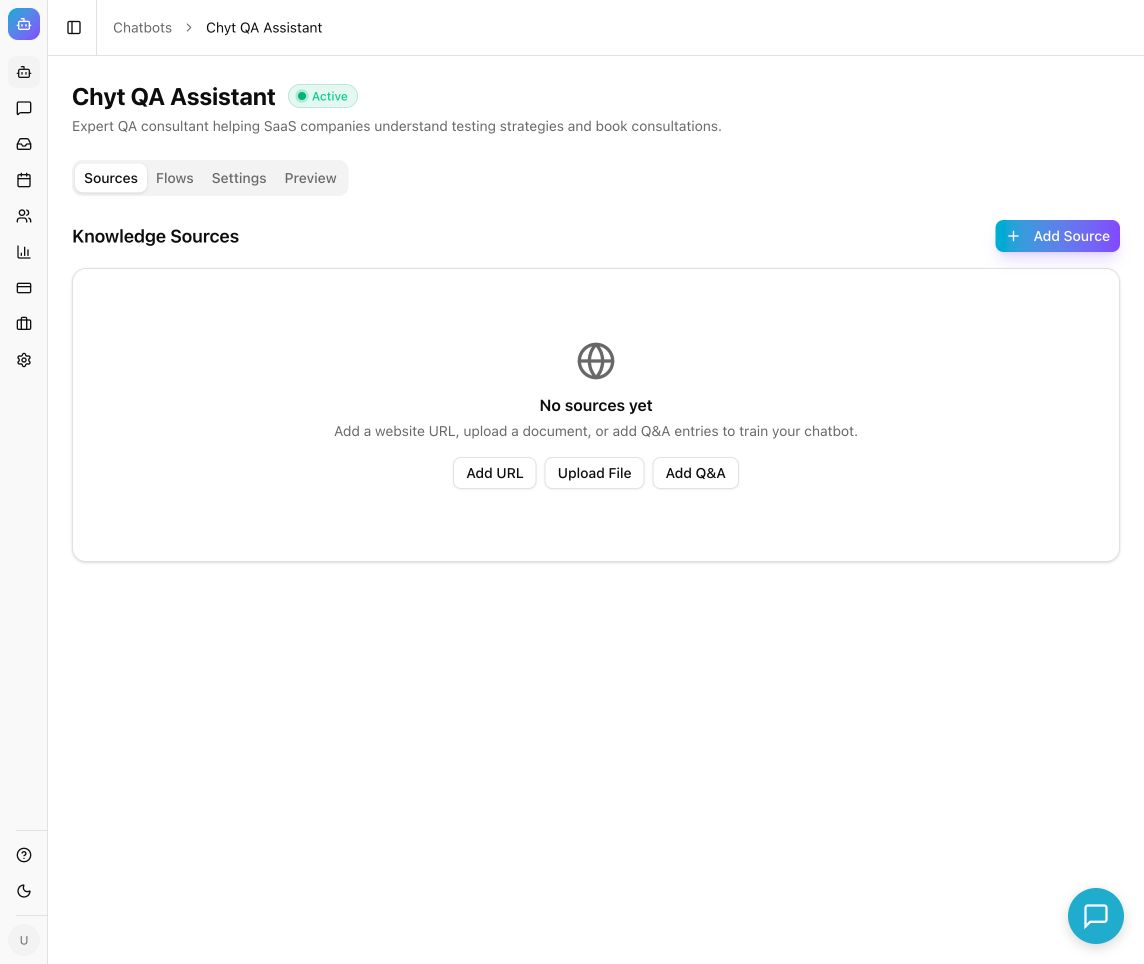
Example from the Chyt.ai dashboard (September 2026).
Choose the correct source
| Source | Information to prepare | Refresh considerations |
|---|---|---|
| Notion | Integration Token; optional Root Page ID | Share the intended pages/databases with the integration; choose a schedule in the dialog. |
| Confluence | Confluence URL, Email, API Token; optional Space Key | The dialog targets Confluence Cloud and offers a sync schedule. |
| Jira | Jira URL, Email, API Token, Project Key; optional JQL Query | Restrict imports to the issues useful to your chatbot. |
| Google Drive | Google account with access to the documents | Uses Google authorization; availability and reconnect requirements depend on provider setup. |
| SharePoint / OneDrive | Microsoft Graph access token; optional Site ID and Folder Path | Manual import; automatic sync is unavailable. |
| Dropbox | Dropbox Access Token; optional Folder Path | Manual import; automatic sync is unavailable. |
| Gitbook | Gitbook API Token and Space ID | Choose a sync schedule and page limit. |
| YouTube | Video, playlist, or channel URL | Requires an accessible transcript in the selected language. |
| REST API | Endpoint, method, authentication, and response structure | Imports a snapshot of returned content; choose a sync schedule if needed. |
Connect a token-based source
- Open the chatbot's Sources tab and select Add Source.
- Choose the provider.
- Enter the fields shown in its connection dialog.
- Restrict the content scope. Examples include a Notion Root Page ID, Confluence Space Key, Jira Project Key or JQL Query, and a storage Folder Path.
- Set the page, file, issue, or video limit offered by that connector. The server accepts configured source limits from 1 to 500, subject to workspace allowances.
- Choose Sync Schedule only where the dialog offers it.
- Select the provider's Connect button or the dialog's add action.
- Wait for the source to become Ready, then test representative questions in Preview.
For Notion, create a read-only integration in Notion, copy its internal integration token, and share the desired pages or databases with it before connecting.
Connect Google Drive
- Select Add Source → Google Drive.
- Review Connect Google Drive, then select Connect with Google.
- Complete the Google authorization prompts in the same browser session.
- Return to Chyt.ai and check that a source was created.
- Review the source's status and imported content before relying on it.
Google authorization requests read-only access. If authorization or the return to Chyt.ai fails, restart the connection from the intended workspace. Do not assume consent is complete because you reached Google's page.
Import a REST API response
- Select Add Source → REST API.
- Enter the source name, Endpoint URL, and HTTP Method.
- Choose Authentication: None, Bearer Token, API Key, or Basic Auth; complete the matching fields.
- If required, enter Response Path (JMESPath) to select the relevant part of the JSON response.
- Use Content Template to describe how records should become readable knowledge.
- Set the desired Sync Schedule, submit, and check the result in Sources.
A knowledge API source is an import workflow. For actions that should run during a visitor conversation, use the chatbot's Functions or flow capabilities instead.
Verify and maintain the connection
Expected result: the intended documents or records are indexed and a known test question retrieves them. Use Sync history to inspect recent runs and errors. Renew or reconnect credentials when the provider requires it.
SharePoint and Dropbox require a valid supplied token when importing and do not support automatic synchronization. An old token may no longer be valid for a later manual attempt.
For empty imports, check content sharing, scope, folder or space identifiers, transcript availability, and token permissions. For an unavailable connector, follow the displayed reason; a document upload or website source may provide a suitable alternative while provider setup is completed.