Customize the widget's appearance and behavior
Set brand colors, greeting, starter questions, language, visitor limits, and conversation animations, then verify the published widget.
On this page
Settings → Widget controls the floating chat experience on your website. Use its preview while editing, then test the real embed after saving.
Before you begin
Have your brand color, optional avatar image URL, a short greeting, and up to four useful starter questions ready. Use a publicly accessible image URL for an avatar. Check your plan before relying on branding removal or other restricted options.
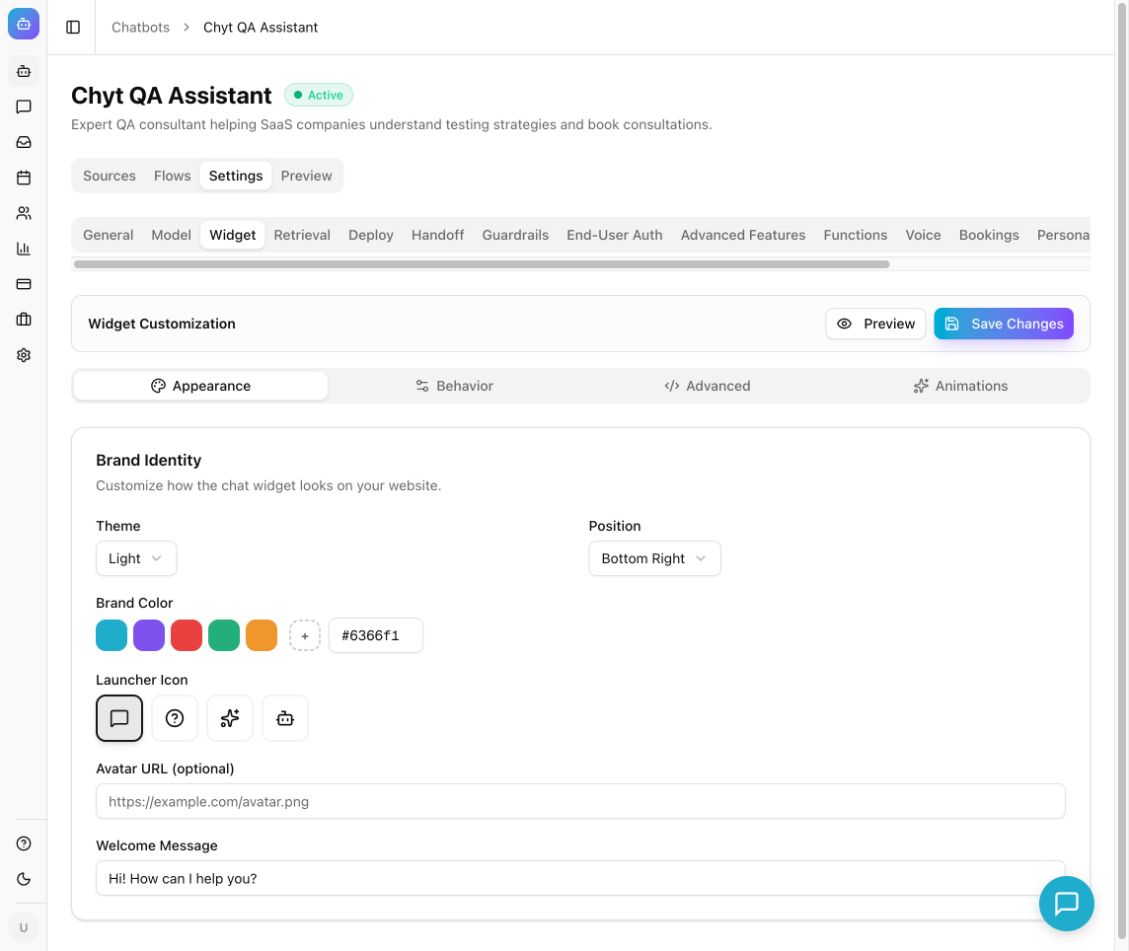
Example from the Chyt.ai dashboard (September 2026).
Set the appearance
- Open your chatbot's Settings → Widget.
- Select Appearance.
- In Brand Identity, choose Theme: Light or Dark.
- Set Position to Bottom Right or Bottom Left.
- Choose Brand Color using a preset or a color value.
- Select Launcher Icon.
- Add Avatar URL (optional) if you want a custom image.
- Enter Welcome Message.
Keep the greeting short and specific, for example: “Hi! Ask us about setup, plans, or your account.” Verify that the brand color provides readable contrast in the preview.
Configure behavior
- Select Behavior.
- In Persona & Tone, choose Persona Mode and Tone.
- Add Custom Greeting (optional) if needed. The form supports a {chatbot_name} placeholder.
- Under Widget Language, choose Language for interface labels such as buttons and the input placeholder.
- In Starter Questions, select Add Question and add up to four concise questions.
- Configure AI Disclaimer and its text as appropriate.
- Select Save Changes.
The widget language controls interface labels; it does not itself translate your source documents or guarantee response quality in a particular language. Test actual questions in every language you intend to support.
Review visitor verification and limits
The Visitor verification & message limits card shows whether enforcement is active or still awaiting platform activation. When enforcement is active, the visitor is asked for name, email, and phone after four messages and must verify one supported contact method to continue.
Set Messages per conversation and Messages per visitor per day within the maximum shown for your plan. The daily allowance is shared across that visitor's conversations with this bot and resets at 00:00 UTC; opening a new chat does not reset it. Edits and regenerated replies count as additional requests.
These visitor safeguards are separate from the workspace's AI credits and unlimited deterministic-flow conversation entitlement. Use the activation and delivery options actually shown in your dashboard.
Tune animations
- Select Animations.
- Set Enable animations.
- Review Answer delivery, Bubble entrance, Typing indicator, and Animation speed.
- Choose whether to Animate welcome message.
- Use Try the conversation to preview the effect. This preview does not send messages.
- Select Save Changes and test a real answer in the embedded widget.
The welcome animation runs on first open; reopening the widget does not replay it. Disabling animations shows complete answers without decorative motion.
Advanced styling and branding
Advanced → Custom CSS applies inside the widget's Shadow DOM. Make a small change, save it, and test the actual embed rather than assuming your website's global CSS will style the widget.
Remove “Powered by Chyt.ai” is controlled by plan eligibility. If the switch is disabled, follow the plan indication shown in the dashboard.
Expected result: saved branding and behavior appear in the published widget, and the launcher, greeting, starter questions, and responses remain usable on desktop and mobile.
Troubleshooting
If changes are absent, confirm Save Changes completed, reload the visitor page, and check that its embed uses this chatbot's ID. If the widget cannot answer, use deployment checks and model checks. For response style beyond the widget's basic tone, configure Persona.