Manage billing details and understand tax invoices
Save the correct billing recipient, review tax totals when checkout is available, and distinguish tax invoices from provider references.
On this page
Before you begin
Use an owner/admin account with billing-management access and have the intended billing recipient's legal name, email, address, and optional GSTIN ready.
Current availability, September 16, 2026: billing-profile and tax-invoice interfaces are deployed, but GST collection and fiscal invoice issuance remain inactive. The dashboard's live status is authoritative. Existing provider receipts and payment amounts are unchanged by saving a profile.
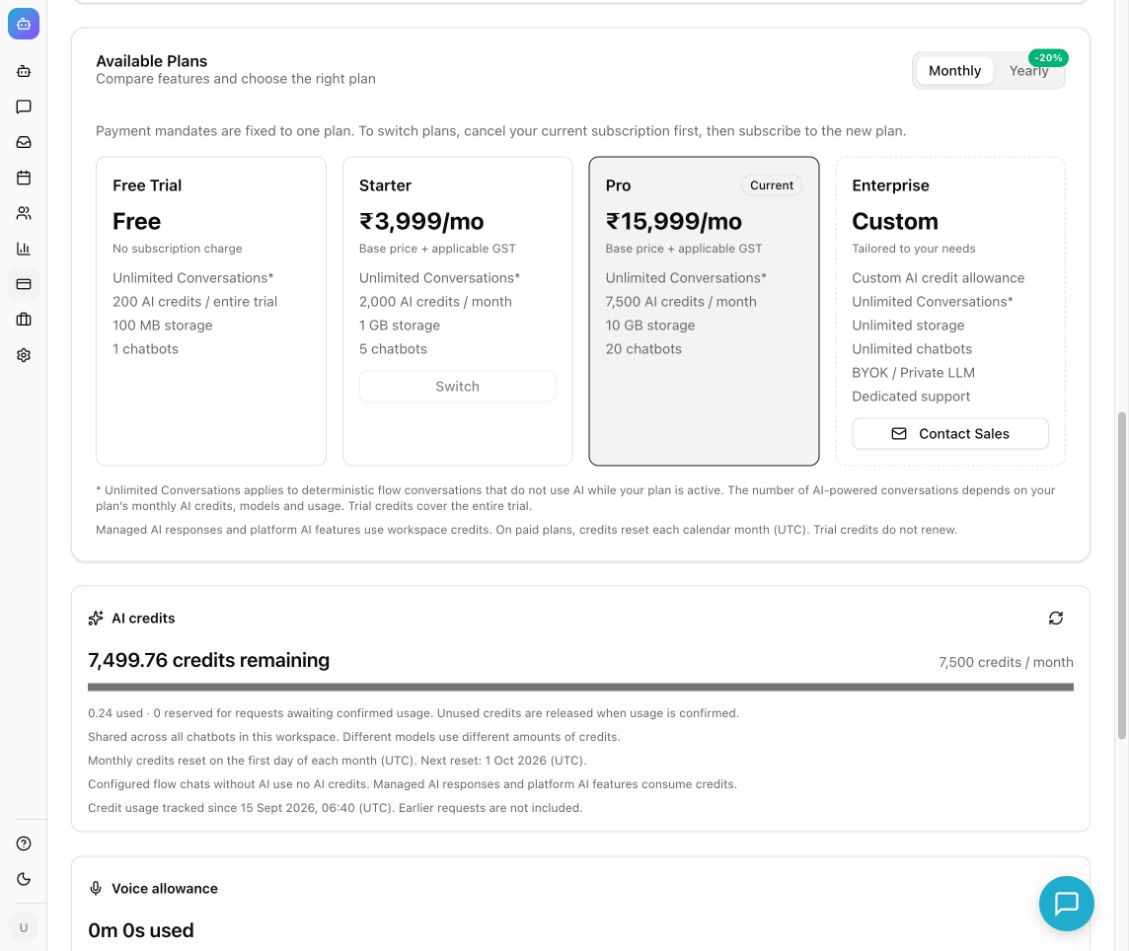
Example from the Chyt.ai dashboard (September 2026).
Save or update billing details
- Open Billing and find Billing details & GST.
- Select Add billing details or Edit billing details.
- Fill in Legal name / business name, Billing email, Address line 1, optional Address line 2, City, and PIN code.
- Select State / union territory. The supported form currently uses India as its country.
- Set Billing recipient accurately. If the recipient is an SEZ unit / developer, you can save the details, but online tax checkout is unavailable for that supply; contact billing support.
- Enter GSTIN (optional) only when appropriate for the recipient. Check that the name, GSTIN, and address are the details that should appear on future invoices.
- Select Save billing details and review the saved profile on the Billing page.
Profile edits apply to future documents. Issued tax invoices preserve the recipient details recorded at issuance; changing your profile does not rewrite them.
Review a tax checkout when it is available
- Start the desired plan selection from Available Plans.
- If the platform presents Review billing & GST, confirm the recipient and select Save & get GST quote.
- Read the base charge, displayed GST components, and Total including GST for the selected billing period.
- Check the place of supply and quote expiry. Use Edit details if anything is incorrect, then obtain a fresh quote.
- Tick the recurring-total consent checkbox only after reviewing the complete amount and period, then select Continue to payment.
- Complete provider checkout and confirm the subscription/payment status on return. If tax checkout is inactive or unavailable, follow that message; a saved profile does not enable fiscal issuance.
Find and download an issued document
- In Billing, inspect Tax invoices separately from Provider payment references.
- If a tax invoice is present, check its invoice number, date, Total incl. GST, payment state, paid amount, and balance due.
- Select View / print to open the authenticated document. Use Print / Save PDF or Download PDF when offered to retain a copy. The print option preserves characters that require browser rendering.
- Identify any TEST label before using a document. A test document or provider payment reference is not a live fiscal invoice.
- Review payment state separately: an invoice may be issued while payment is still outstanding. A provider reference by itself does not prove settlement.
What you should see
The saved billing profile is visible, readiness messages accurately describe checkout availability, and any issued fiscal documents appear separately from provider payment records. Chyt.ai is provided by THOMPSON CONSULTING (OPC) PRIVATE LIMITED.
Troubleshooting
- Tax checkout is not active: this is the current rollout state; profile editing does not activate it.
- Quote expired: obtain a fresh quote and re-review the total before continuing.
- Invalid recipient details: check required fields, the six-digit PIN, selected state, and GSTIN formatting.
- SEZ or another unsupported supply: contact billing support for a supported process.
- Tax invoices unavailable: use Retry tax invoices. Provider payment references remain separate and should not be substituted for a missing fiscal document.
- An old invoice shows old details: contact support about the required correction process; editing the profile preserves issued records.